
Use Reports to answer a specific question about recorded activity, then export the filtered results when you need to share or work with them elsewhere. For a detailed GPS report, start with Raw GPS Data; for trips and distance, start with Journeys or Journey Summary.
Choose the right report
What trips occurred, and were they business or private?
Journeys, Journey Summary or Tax Logbook
How long were vehicles inside an area?
Time in Zones or Zone Stocktake
Where is activity concentrated?
Heatmap
How are vehicles being used?
Engine Idle, Refueling, Maintenance, Engine On/Off, Inputs or Utilisation
What happened with people, bookings or alerts?
Rosters, Reservations, Driver History or Alert History
Is the source GPS or tracker data healthy?
Raw GPS Data or Tracker Self Check
For report-specific interpretation, see Analyse time in zones, current presence and activity heatmaps, Monitor engine activity, inputs and utilisation, Record refuelling and monitor vehicle maintenance, or Review workforce, booking and alert history reports.
For an outcome-led review across several reports, see Reduce fleet operating costs with tracking data or Measure fleet utilisation and capacity.
Before you start
Report availability depends on your subscription, permissions and recorded data. Engine On/Off, Inputs and Utilisation require data from compatible hardware.
Decide what question you need to answer and the shortest useful date range before you run the report. Reports and exports can contain sensitive location, driver and vehicle information, so select only the vehicles or people you need and share exports only with authorised recipients.
Steps
- Open Reports and select the report tab that matches your question.
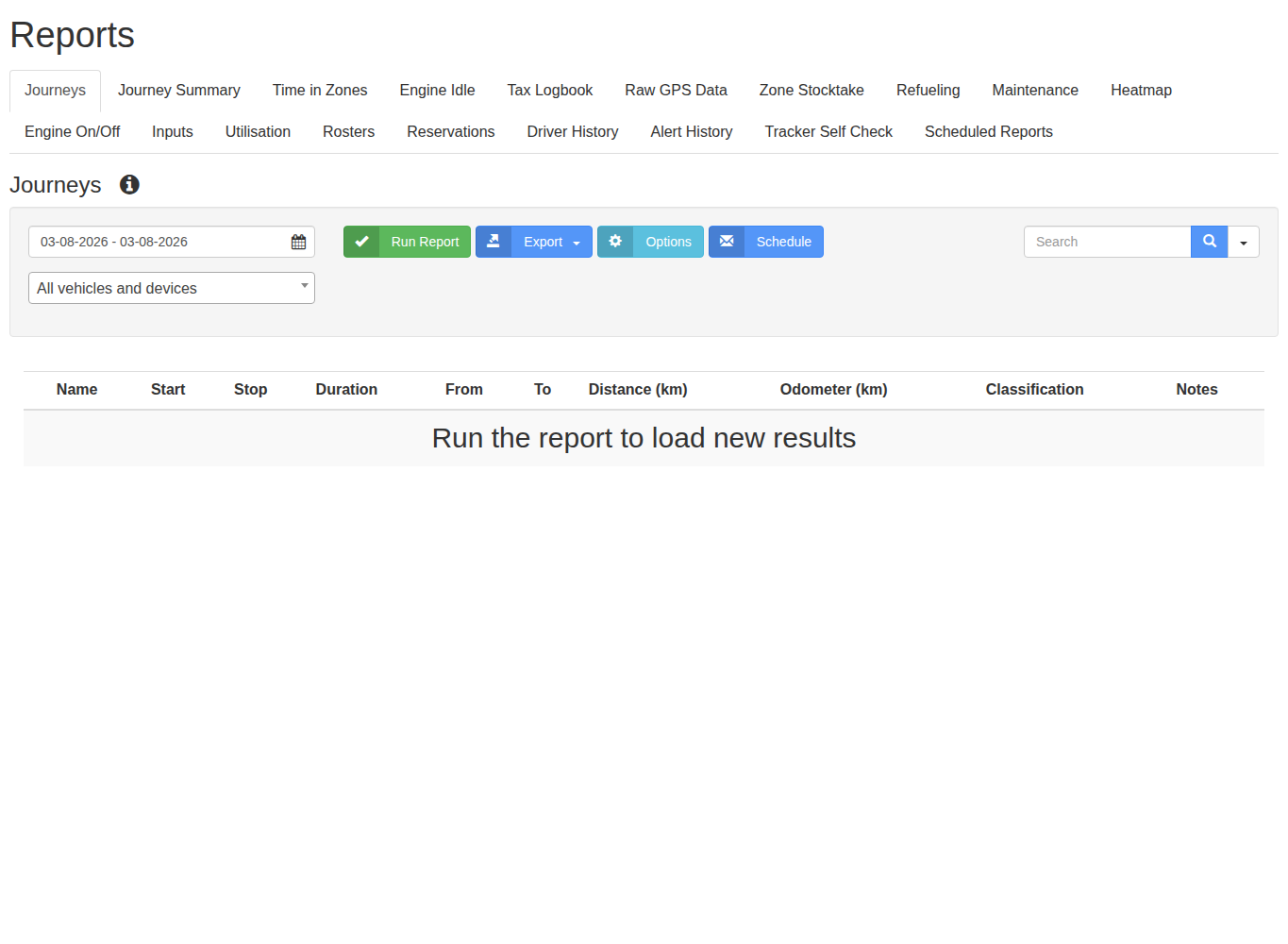
- Choose the date range. A shorter range is faster to review and reduces unrelated results.
- Select the vehicle, person or option for all devices. Use all devices only when you need a fleet-wide result.
- Open Options where available and set any report-specific thresholds or grouping.
- Select Run Report.
- Confirm that the heading, date range and selected vehicles or people match your request. Review expanded rows and totals for unexpected or missing data.
- Select Export, then choose CSV, Excel or PDF from the formats offered by that report.

Some reports offer an extra export, such as Journey GPS Data (CSV). This contains more detailed location data than the standard report, so download it only when needed.
What happens next
The downloaded file contains the results for the active report filters. Open it and check the date range and selected records before sharing it. Follow Schedule reports for email delivery to have the same supported report delivered automatically.
Troubleshooting
- If a report tab is absent, the account may be on the Security plan or your login may lack permission.
- If the report is empty, confirm the date range, vehicle or person, and account timezone. Empty output usually means no records match those filters.
- If an export omits information, rerun the report and review the expanded rows and active filters before exporting again.
- If an export format is not offered, choose one of the formats available for that report.