
An application programming interface (API) lets a website, dashboard or other business system exchange data with Track My Ride automatically. A developer can use it to retrieve authorised vehicle, location, driver, alert, zone or report data and connect that information to an internal workflow.
This article explains the connection pattern and a safe first request. The Track My Ride API reference is the source of truth for currently supported modules, actions, required data and returned fields.
Before you start
Confirm that the account includes API access and that a developer or integration provider is responsible for the connection. API work requires experience with HTTPS requests, form data and JSON responses.
Create a separate API key and user key for this connected system by following Create, store and revoke API keys. Both values are private credentials and can provide broad access to account and vehicle-location data.
Plan a server-side connection. Do not put Track My Ride credentials in public browser JavaScript, a mobile application, webpage source, a shared URL or a public code repository. Your server should call Track My Ride and return only the fields the website or application needs.
Steps
1. Prepare the credentials and request
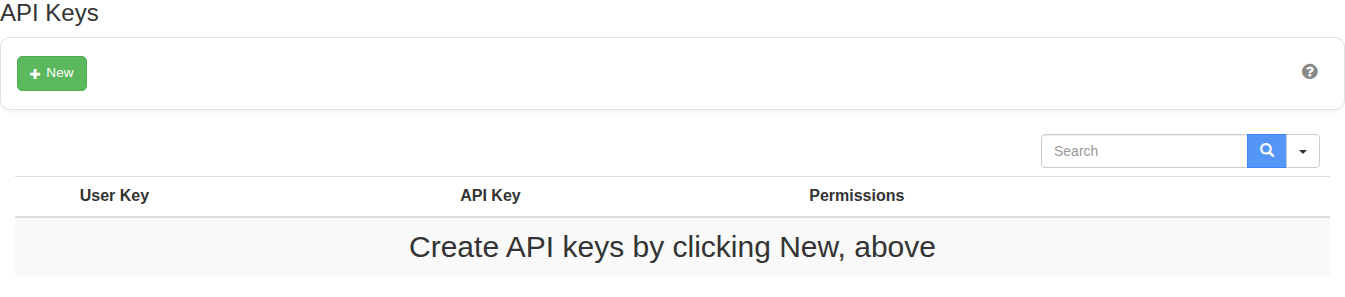
- Open Settings > API Keys and confirm that the connected system has its own active key pair.
-
Store the API key and user key in the server's protected credentials vault or environment configuration.
-
Use the API endpoint documented in the developer reference:
https://app.trackmyride.com.au/v2/php/api.php -
Prepare these request fields:
Field: api_key
Required: Yes
Purpose: Identifies the API connection.
Field: user_key
Required: Yes
Purpose: Authenticates the key pair. Treat it like a password.
Field: module
Required: Yes
Purpose: Selects the API area, such as devices, alerts, drivers, zones or reports. Use a value documented in the API reference.
Field: action
Required: Yes
Purpose: Selects the operation within that module. Use the exact value documented for that operation.
Field: json
Required: Recommended
Purpose: Set to 1 to request JSON. If it is omitted, standard API output defaults to XML.
Field: data
Required: Depends on the action
Purpose: Supplies filters or values required by that action. It can be submitted as form fields or as a JSON-encoded object where the reference permits it.
The endpoint accepts GET and POST parameters. Use an HTTPS POST request for credentials so they are not placed in the URL, where browser history, server logs, monitoring tools or copied links may retain them.
2. Send a read-only test
Start with a read-only module and action from the API reference. The following server-side command shows the request structure without containing credentials or prescribing a particular module:
curl --request POST 'https://app.trackmyride.com.au/v2/php/api.php' \
  --data-urlencode "api_key=$TMR_API_KEY" \
  --data-urlencode "user_key=$TMR_USER_KEY" \
  --data-urlencode 'module=DOCUMENTED_MODULE' \
  --data-urlencode 'action=DOCUMENTED_READ_ACTION' \
  --data-urlencode 'json=1'
Set TMR_API_KEY and TMR_USER_KEY through the server's protected configuration. Replace the module and action placeholders only with a supported read operation from the current API reference.
Check the returned JSON structure against that operation's documentation. Do not assume that every module returns the same fields or success value. Record errors safely without logging credentials, full location histories or unrelated personal data.
3. Build the connection
- Request only the records and fields needed for the stated business purpose.
- Validate missing, delayed and unexpected values before storing or displaying them.
- Protect stored location, driver and account data with the same access controls used for other sensitive business information.
- Add retries only for temporary failures. Use a delay between attempts and stop after a reasonable limit instead of sending requests continuously.
- Test with a small authorised data set before enabling a scheduled job or customer-facing feature.
- Confirm that the connected system returns only expected account data. The current API Keys screen does not provide a reliable per-key vehicle selector, so do not assume that a newly generated key is restricted to selected vehicles.
For a map or customer portal, your backend should request the required Track My Ride data and send a reduced response to the browser. Use your own suitable mapping library and map-tile provider, subject to that provider's terms. Track My Ride API access does not include public map-tile hosting.
4. Operate it safely
Give each connected system a separate key pair and a named owner. Review active keys regularly, monitor request failures and revoke a key when the integration is retired or may have been exposed. Rotate credentials by deploying a replacement pair before revoking the old one when uninterrupted service is required.
API responses may be cached or rate-limited where applicable. Follow response errors and the current API reference rather than repeatedly sending the same request. Contact Support before relying on a restricted-access design that cannot be verified with the returned test data.
What happens next
The connected system can request authorised Track My Ride data using its API key and user key. Adding json=1 returns JSON for standard requests; omitting it normally returns XML.
The API reference may change as modules and actions evolve. Recheck it before adding an operation, changing submitted data or depending on a returned field. Keep integration tests for the fields your system requires.
Troubleshooting
- The request is rejected: Confirm the endpoint, API key, user key, module and action. Check that the key remains active and that the account includes API access.
- XML is returned instead of JSON: Submit
json=1with the request and confirm that the connected system is reading the response body as JSON. - The API returns more data than expected: Stop the rollout, review the account and key used, and reduce what your backend passes to other systems. Do not rely on an unverified per-vehicle restriction.
- The browser reports a cross-origin or credential problem: Move the Track My Ride request to your backend. Do not weaken browser security controls or expose the keys in client-side code.
- Requests work manually but fail on a schedule: Check the server's protected environment configuration, network access, timeout, retry delay and logs. Ensure logs do not print either key.
- A key may have been exposed: Revoke it immediately, create a replacement and update the protected credentials vault. Review the integration and logs for unintended access.
- You need to connect AroFlo: There is no native Track My Ride connector. Give a developer the required workflow and both products' current API documentation so they can assess a custom server-side integration.