
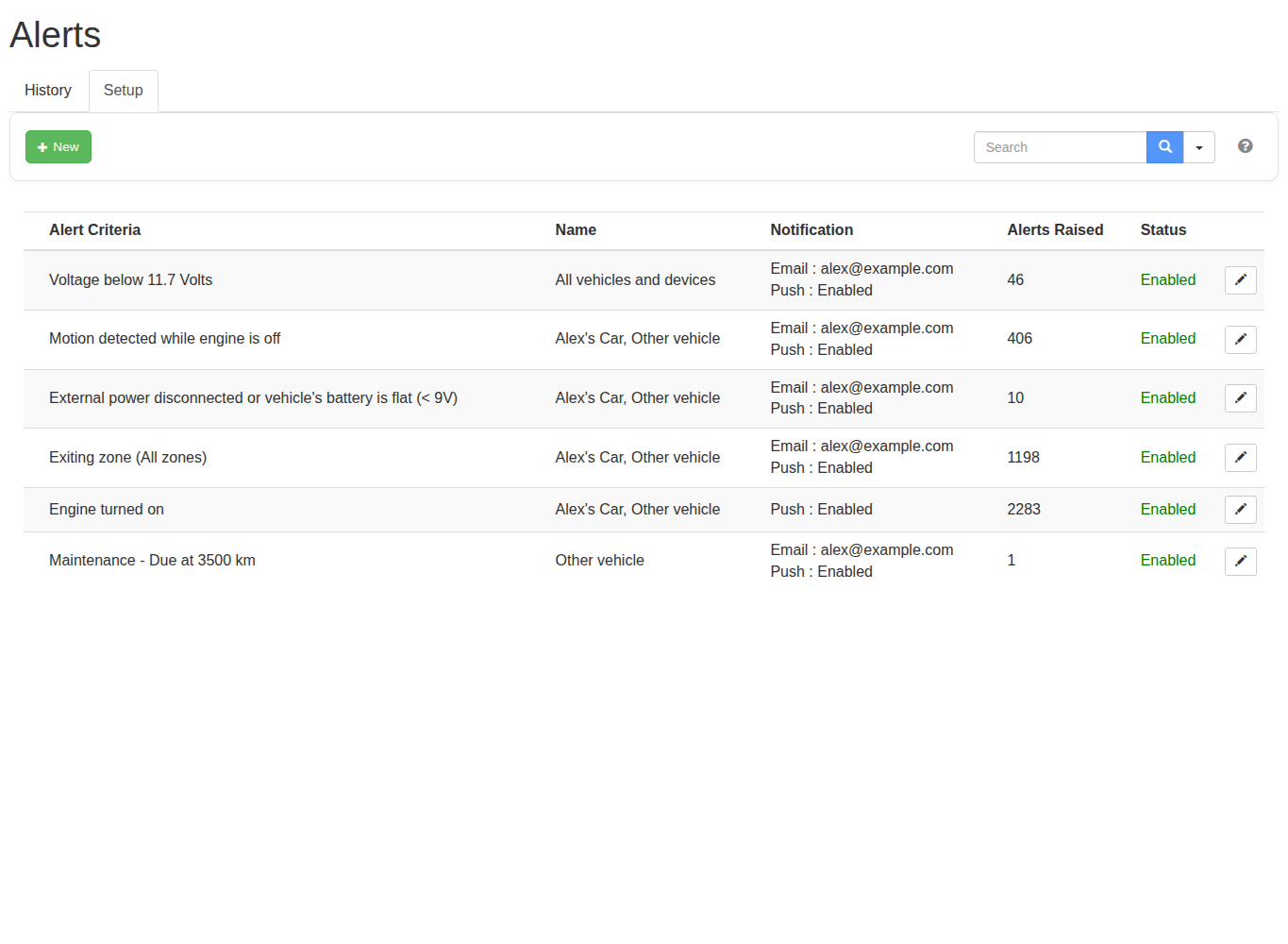
Use alerts to notify selected contacts when a tracked event meets conditions you choose, such as a speed threshold or zone entry. The Alerts page shows the most recent 100 alerts from the past month.
Before you start
Decide which event matters, which vehicles or people to monitor, when the rule should be active and who should be notified. Alert types vary by plan, device and tracker configuration. SMS requires available credits. Push notifications require a linked app with notifications enabled.
Steps
Create an alert
- Open Alerts and create a new alert.
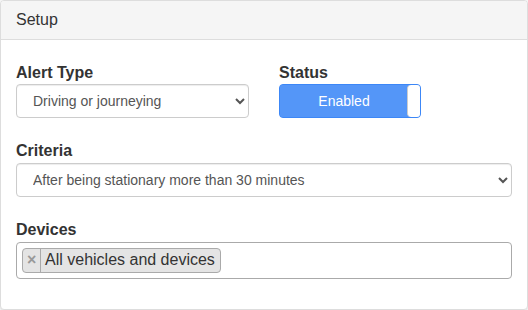
- Choose an Alert Type. Use the reference below to select the event and criterion that match your intended outcome.
- Select the vehicles or people to monitor.
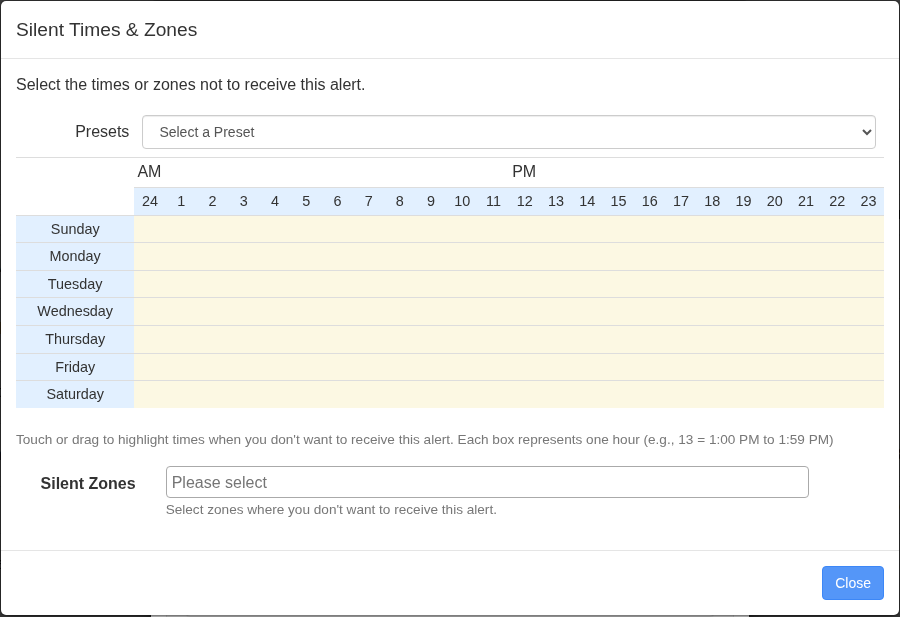
- Configure the thresholds, zones, active days and active times shown for that condition. Check the account timezone when timing matters.
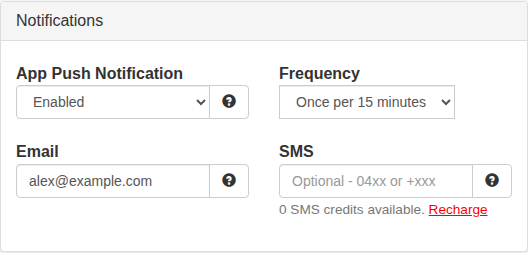
- Add email, SMS or push recipients. Stay within the channel limits shown on screen.
- Review the condition, monitored records, schedule and recipients, then save and enable the alert.
- Perform a controlled test when it is safe to do so.
- Return to Alerts and confirm that the test appears. Use Reports > Alert History if you need the longer, exportable history or related journey details when available.
Choose an alert type and criterion
The Alert Type list contains the following options. The available devices change when a type requires particular hardware. Read the compatibility message shown below the selector before choosing devices.
Movement
Alert type: Driving or journeying
When it can trigger: A journey matches the selected timing or duration condition.
Available criteria: After being stationary for more than 30 minutes; anytime; between 6 pm and 6 am; between 11 pm and 6 am; Saturday; Sunday; weekend; weekday; continuously for more than two hours; continuously for more than three hours. Times use the account timezone.
Alert type: Speed exceeding (single point)
When it can trigger: One received GPS point is above the selected speed.
Available criteria: 90, 100, 105, 110, 120, 130 or 140 km/h, or a custom speed from 2 to 300 km/h.
Alert type: Speed exceeding (3 consecutive points)
When it can trigger: Three received GPS points in a row are above the selected speed.
Available criteria: The same preset and custom speeds as the single-point alert. The delay depends on the tracker's reporting frequency.
Alert type: No new location updates received
When it can trigger: Track My Ride has not received a new position for the selected period.
Available criteria: 15, 30, 45, 60, 90 or 120 minutes, or a custom period from 5 to 10,080 minutes. Mobile coverage gaps can also cause this alert. For Location Sharing, choose a period longer than the phone's normal upload interval.
Alert type: Entering a zone
When it can trigger: A selected device reports a transition from outside to inside any selected zone.
Available criteria: Select one or more existing zones.
Alert type: Exiting a zone
When it can trigger: A selected device reports a transition from inside to outside any selected zone.
Available criteria: Select one or more existing zones.
Maintenance and service
Alert type: Odometer exceeding (km)
When it can trigger: The vehicle odometer reaches the entered distance.
Available criteria: Enter a positive kilometre value. Track My Ride sends the reminder 1,000 km before it is due.
Alert type: Hourmeter exceeding (hours)
When it can trigger: The vehicle hourmeter reaches the entered operating time.
Available criteria: Enter a positive hour value. Track My Ride sends the reminder 10 hours before it is due.
Alert type: Date exceeding (date)
When it can trigger: The selected service date approaches.
Available criteria: Choose a date. Track My Ride sends the reminder seven days before it is due.
Maintenance alerts also provide Service Presets and Notes. A preset adds common work such as registration renewal, a general service, an inspection, tyre rotation or a consumable replacement to the notes. Notes are included in the alert email. Confirm the current odometer or hourmeter before setting a threshold because the alert uses the value stored by Track My Ride.
Sensors
Alert type: Motion detected while engine is off
When it can trigger: A compatible hardware tracker detects movement while the engine is off.
Available criteria and compatibility: No additional threshold. The editor identifies compatible TMR-S8 and GeoBeetle hardware trackers.
Alert type: Engine turned on
When it can trigger: A compatible hardware tracker changes from engine off to engine on.
Available criteria and compatibility: No additional threshold. The editor identifies compatible TMR-S8 and GeoBeetle hardware trackers. Engine detection must already be configured correctly.
Alert type: Voltage
When it can trigger: Reported external voltage falls below the selected value.
Available criteria and compatibility: External power disconnected or battery flat below 9 V; 12.2, 12 or 11.8 V for passenger vehicles; 26, 25 or 24 V for heavy machinery and trucks; or a custom value from 8 to 28 V. The appropriate threshold depends on the vehicle and installation.
Alert type: State of charge (%)
When it can trigger: A compatible battery-powered device reports a charge below the selected percentage.
Available criteria and compatibility: 50%, 30%, 20% or 10%, or a custom value from 1% to 99%. The editor supports TMR-R4 and TMR-R5 trackers and Location Sharing phones for this type. New rules default to a frequency of once per 24 hours.
Alert type: Inputs
When it can trigger: A configured tracker input changes electrical state.
Available criteria and compatibility: Input 1 or Input 2 changing from low to high above 9 V, or from high to low at 0 V. On a supported TMR-S8, Input 1 may use positive sensing (default) or negative/ground sensing; the criteria continue to name the physical wire transition. Confirm the Input 1 mode and connected equipment before creating the rule.
Alert type: Unassigned keyfob used
When it can trigger: A compatible Driver ID reader reports a card or keyfob that is not assigned to a person.
Available criteria and compatibility: No additional threshold. The editor identifies compatible TMR-S8 hardware trackers.
Green driving
These alerts require a compatible hardware tracker to measure acceleration forces. The editor identifies TMR-S8 and GeoBeetle trackers as supported. A higher sensitivity uses a lower G-force threshold, so it can report less severe events.
Alert type: Harsh acceleration
Passenger vehicle presets: Low 0.60 G; medium 0.50 G; high 0.45 G.
Truck or van presets: Low 0.45 G; medium 0.40 G; high 0.35 G.
Heavy vehicle presets: Low 0.40 G; medium 0.35 G; high 0.30 G.
Alert type: Harsh braking
Passenger vehicle presets: Low 0.70 G; medium 0.65 G; high 0.60 G.
Truck or van presets: Low 0.60 G; medium 0.55 G; high 0.50 G.
Heavy vehicle presets: Low 0.55 G; medium 0.50 G; high 0.45 G.
Alert type: Harsh cornering
Passenger vehicle presets: Low 0.60 G; medium 0.55 G; high 0.50 G.
Truck or van presets: Low 0.50 G; medium 0.45 G; high 0.40 G.
Heavy vehicle presets: Low 0.45 G; medium 0.40 G; high 0.35 G.
Each green-driving type also accepts a custom threshold from 0.25 G to 3.0 G. Start with the preset for the vehicle class, review controlled test results and adjust only when the preset consistently reports normal driving or misses events that your organisation considers significant.
Panic Button is configured separately. It is not an option in the Alert Type list. Use Configure Panic Button notifications to choose its recipients.
Refine when and where it triggers
Use the advanced controls to reduce unwanted notifications. The events still remain in history:
Control: Frequency
Behaviour: Limits how often the same rule can notify. Available intervals are 1, 5, 15 or 30 minutes, or 1, 2, 6, 12, 24 or 48 hours. Maintenance alerts use their due reminder instead.
Example: A 15-minute limit prevents repeated notifications during one continuous speeding event. SMS is limited to one message per 15 minutes.
Control: Within zones
Behaviour: The rule can trigger only while a device is inside any selected zone.
Example: Apply a 15 km/h speed alert only in an office car park.
Control: Silence > times
Behaviour: The rule does not notify during the selected hour blocks and days. Each block represents a full hour in the account timezone.
Example: Silence daytime hours so a movement rule reports only after-hours use.
Control: Silence > Silent Zones
Behaviour: The rule can trigger everywhere except inside the selected zones.
Example: Ignore normal engine starts at the depot while retaining the rule elsewhere.
Within zones and Silent Zones are opposites: use Within zones when you care only about selected places; use Silent Zones when you care everywhere except selected places. If different vehicles need different silent periods, create separate alert rules because a silence schedule applies to the whole rule.
For speed alerts:
- Single point can trigger from the first GPS reading above the chosen speed.
- Three consecutive points waits until three GPS readings in a row are above that speed. This helps ignore one brief spike, but it can notify later than Single point.
The time between those three readings depends on how often that tracker reports. It is not a fixed number of seconds. Test the rule with the intended vehicle before relying on it.
Manage an alert
Open Alerts and select the existing alert. Edit it when the condition or recipients change, disable it when it may be needed later, or delete it when it is no longer required. Deleting removes the rule, so confirm that you do not need to reuse its settings first.
What happens next
Track My Ride evaluates new device events against enabled alert rules. A notification is sent only when the event meets every configured condition and the selected delivery channel is available.
Troubleshooting
If an alert does not trigger, confirm that the source event exists first. Then check that the alert is enabled and review its selected vehicles or people, zone, thresholds, schedule, timezone and notification destinations. Check Reports > Alert History to distinguish a rule issue from a delivery issue.