
Use reservations to schedule who may use a vehicle and when. They help prevent two people from booking the same vehicle at the same time and can contribute to journey classification, which labels a journey according to your account rules.
By default, Journeys default to is Private. Keep that default and give work-hour reservations a Business classification when only journeys matching the vehicle's booked work hours should become Business. Alternatively, set the account default to Business and give likely private-use reservations a Private classification, such as recurring late-night or weekend periods. In that inverse setup, journeys outside the matching Private periods remain Business.
Before you start
The vehicle must already exist in Track My Ride. If you want to assign the reservation to a person, create that person first.
Before relying on automatic journey classification, follow Set up automatic business and private journey classification. Use Understand journey classification from rosters and reservations when you need to check matching, padding or precedence.
Reservation times use the account timezone. Confirm that timezone before entering bookings for people or vehicles operating in another region.
One vehicle for one time period
Create a single reservation.
The same booking repeats on a predictable schedule
Create a reservation and configure recurrence.
Many bookings already exist in a spreadsheet
Download the current template and use Import.
Steps
- Open Vehicles > Reservations.
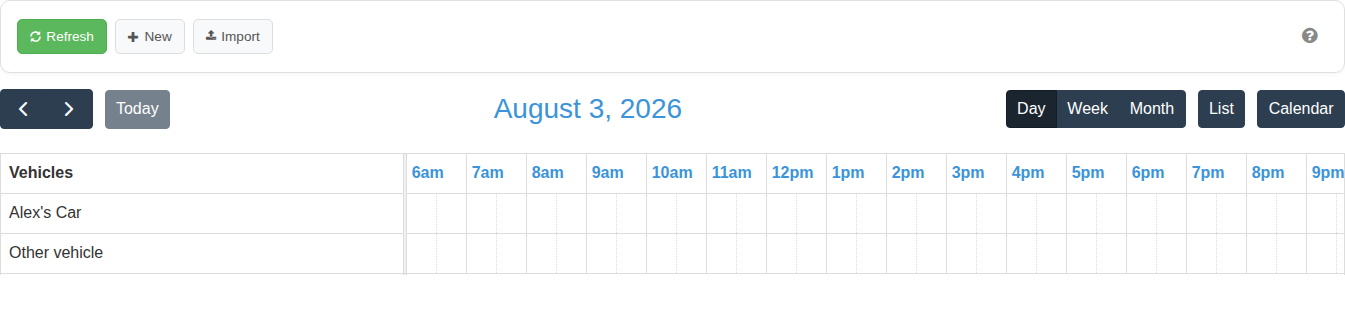
- Select New Reservation.
- Choose the vehicle and, when needed, the person who will use it.
- Choose Business, Private or Default classification (Account settings) when one value should apply throughout the matching reservation. Choose Business via schedule or Private via schedule, then select Schedule and make the applicable day-and-hour cells green, when the reservation should supply a value only during selected hours.
- For a recurring booking, set Repeating to Weekly, select the weekdays, enter the Daily Time, and set the first and last Period dates. Use Disabled for one booking period.
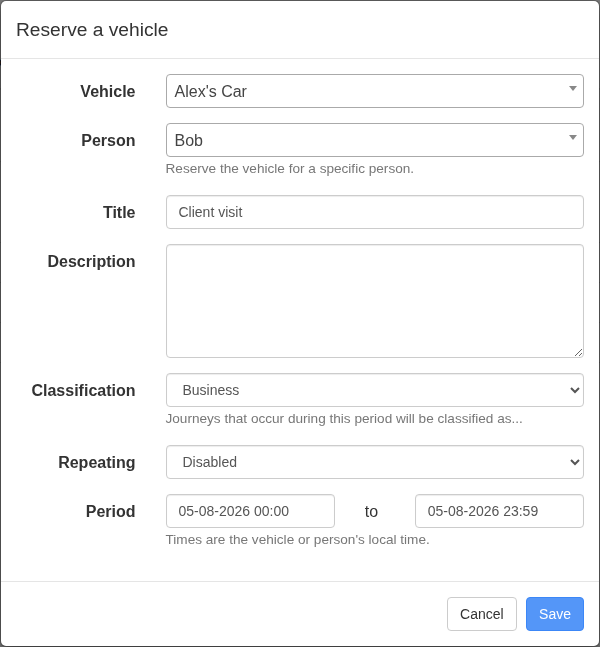
- Save the reservation, then check that each recurrence appears for the correct vehicle, weekdays and local times on the calendar. If Track My Ride warns about an overlap, review both bookings. Continue only when the overlap is intentional and both reservations are valid.
- In Reports > Journeys, confirm a journey inside the configured hours receives the reservation classification and a journey outside them retains the account default or receives another higher-priority rule.
- To change or remove a reservation, select its calendar entry and edit or delete it.
- To add or update many reservations, select Import and download the current CSV template. CSV is a spreadsheet-compatible text format. Keep an untouched backup of the download before editing it.
- Complete the required dates and times. Identify the person by their full name, Company ID or
unique_id. Identify the vehicle by its full name, registration, Company ID orunique_id. - Choose the action for each row:
Create a reservation
Leave unique_id blank.
Update a reservation
Keep its existing unique_id.
Delete one reservation
Keep its existing unique_id and enter true in delete.
Allow an intentional overlap
Enter true in allow_overlap.
- Upload the completed file and review the result before relying on the calendar.
Warning: Leave Delete all existing records? empty during an ordinary import. Typing
DELETEin that field removes every existing reservation before Track My Ride processes the uploaded file. Use it only when you deliberately intend to replace the complete reservation list and have retained a backup.
What happens next
The booking appears in Reports > Reservations. It also blocks Reservation Portal requests that overlap any part of the same vehicle's reserved time. If journey classification is configured and Reservations has precedence over Rosters, a journey matching both uses the reservation rule. Review the configured precedence rather than assuming the newest record wins.
Troubleshooting
- An overlap warning appears: Compare the vehicle, people and full time ranges. Cancel and correct the booking when the overlap is accidental; confirm it only when the overlap is intentional.
- The reservation appears at the wrong time: Check the account timezone and confirm the start and end times.
- A journey is classified unexpectedly: Review matching, padding and precedence under Settings > Application Settings, including whether a roster or zone takes priority.
- Business via schedule or Private via schedule does not apply: Open Schedule and confirm the tested journey start or stop hour is green. Outside green cells, the reservation supplies no classification.
- An import row fails: Keep the column names unchanged and check its dates, times, matching person or vehicle value and existing
unique_idwhere used. Correct the failed row and upload the file again.