
An application programming interface (API) lets another system exchange data with Track My Ride automatically. The API key identifies that connection. The user key acts like its password. Both values are required and both must be kept private.
These values can provide broad access to account and vehicle-location data. Create a separate pair for each connected system so you can remove one connection without disrupting the others.
Before you start
API access requires an API-enabled plan, top-level account access and permission to add records. If two-factor authentication (2FA) is enabled, have your current verification code ready. Confirm that the integration genuinely requires API access before creating credentials because the current interface does not provide a reliable way to restrict a generated key to selected vehicles.
Prepare a password manager or another protected credentials vault before creating the keys. Do not put them in a webpage's visible code, screenshots, support tickets, chat, email, project files or documentation. Give them only to the person responsible for configuring the connected system, using your organisation's approved secure method.
The Connect another system with the Track My Ride API guide explains the secure connection pattern and first test. The Track My Ride API developer guide provides the current technical modules, actions and returned fields.
Steps
- Open Settings > API Keys.
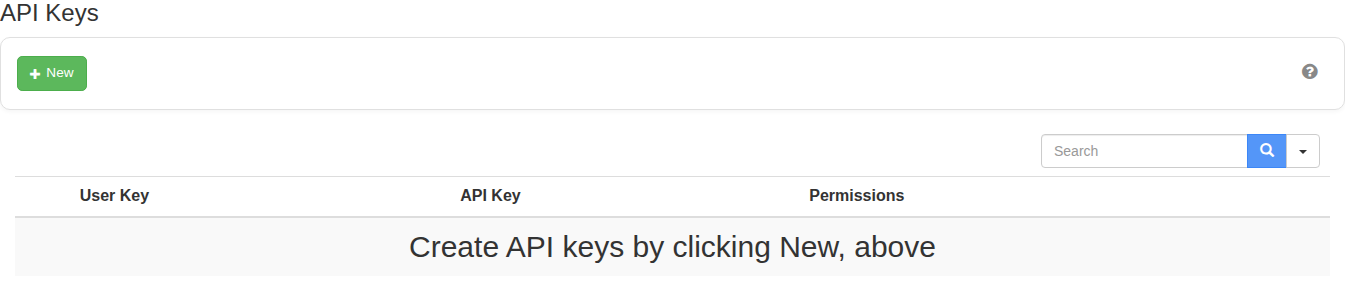
- Select New, review the confirmation, then continue only when you are ready to store the generated credentials immediately.
- Complete the 2FA prompt when it appears. Do not share the verification code with the integration developer or store it with the API credentials. See Set up and recover two-factor authentication if you cannot access a current code.

- Store the generated API key and user key directly in the connected system's protected credentials vault. Do not leave them in notes, messages or project files.
- Follow the Track My Ride API developer guide to use the API key and user key in a test request to the documented web address. Start with a request that reads data without changing or deleting it.
- Confirm that the integration returns only the expected data and performs only the intended actions before enabling its regular operation.
- Revoke the key when the integration is retired, credentials may have been exposed or the responsible person changes. Create and deploy a separate replacement key before revoking the old one when uninterrupted access is required.
What happens next
The integration can make authorised requests using the generated API key and user key. The 2FA code confirms that a person authorised the API key change; it is not sent with normal API requests and must not be added to the integration. Revoking the key stops future requests that use that API key and user key. Review active keys regularly and remove credentials that no longer have a named owner and documented purpose.
Use the API reference when adding modules or actions, interpreting returned data, or checking request requirements.
Troubleshooting
- API key settings are restricted: Confirm that the subscription includes API access and that you are working in the top-level account with the required permissions.
- The connected system cannot access expected data: Confirm that it is sending the correct API key and user key to the request address in the developer guide, and that the Track My Ride account can access the requested information.
- A key may have been exposed: Revoke it immediately and create a replacement. Update the protected credentials vault and do not continue using the exposed key.
- An old integration still has access: Revoke its key rather than reusing that key for another integration.