
Use Sub-Accounts to give each team member a separate login and limit the pages and records they can see. This protects the top-level account, which is the main account with full administrative access, and avoids sharing its password.
Before you start
You must be signed in to the top-level account. List the pages, vehicles, people and zones the team member needs for their work. Grant only that access, especially when location data is private.
Link the login to a person only when that named person will use the Track My Ride app and has agreed to the required phone-location sharing. Linking enables My Journeys and can enable that phone to share its location. Leave Person link set to No linked person for office-only logins, shared workstations, connected systems and public maps.
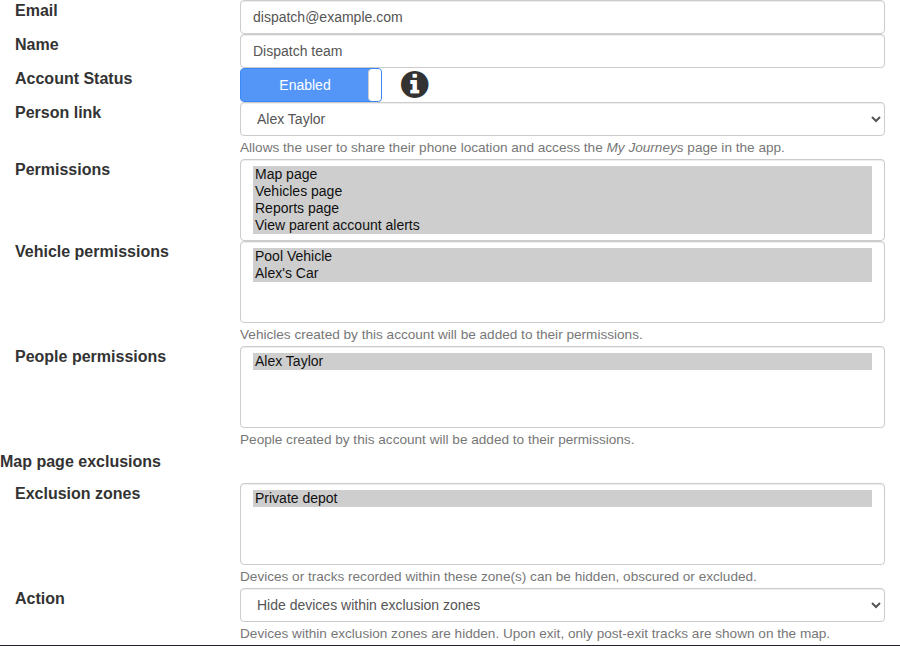
Choose the zone action that matches what the audience must not see:
Zone action: Exclude tracks within exclusion zones
Signed-in sub-account: Removes track sections recorded inside selected zones from the map.
Public shared map: Does not hide a current location because the shared map does not show tracks.
Zone action: Obscure tracks within exclusion zones
Signed-in sub-account: Places track points recorded inside the zone at the zone centre on the map.
Public shared map: Does not hide a current location because the shared map does not show tracks.
Zone action: Hide devices within exclusion zones
Signed-in sub-account: Hides a device while it is inside a selected zone. After it exits, only post-exit tracks are shown.
Public shared map: Use this action to hide current locations from shared-map viewers.
For a map-sharing-only sub-account, select Hide devices within exclusion zones for private homes, depots or customer sites. Test privacy controls with the sub-account login or sharing link; testing while signed in as the top-level account does not prove the restriction works.
Steps
- Open Settings > Sub-Accounts and select New.
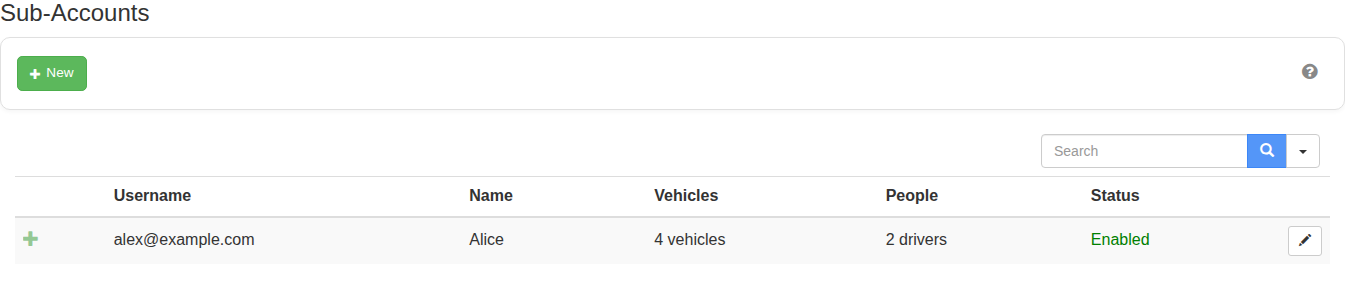
- Enter the user’s email and name, then leave Account Status enabled. The email becomes the sign-in identity and password-recovery destination, so use an address controlled by the intended user or your organisation.
- Under Person link, choose the matching person only when this login should use Location Sharing or My Journeys.
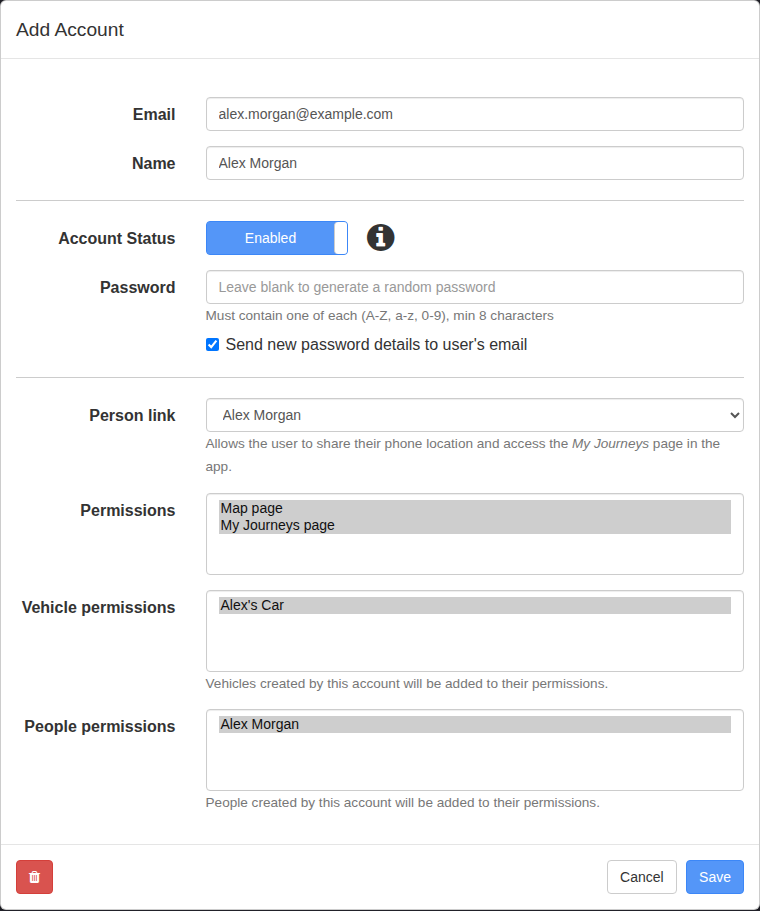
- Under Permissions, select only the required pages and actions. Page access does not automatically grant add, edit or delete access; select those record permissions only when the role needs them.
- Under Vehicle permissions and People permissions, choose only the vehicles and people the user needs. All vehicles and All people also include records added later. Selecting names individually keeps access limited to those records.
- Under Map page exclusions, choose the private zones and select the action from the table above.
- Save the sub-account. Send credentials through an approved private channel; do not reuse the top-level account password.
- Ask the user to sign in with their new login. Check each permitted page and confirm that restricted pages, records and locations within excluded zones are not visible. Test a public sharing link separately in a private browser window.
- Ask the user to set up 2FA for their own login. A sub-account does not inherit the top-level account owner's authenticator or backup codes.
Change or suspend access
Edit the sub-account when responsibilities change. Setting Account Status to Disabled prevents sign-in, signs out active sessions and deactivates map sharing. Use Change password when the user should retain access but their credentials may be compromised.
Before giving more access, check both the permitted page and the permitted vehicles or people. The user needs both to work with a record. Before removing access, check whether the same sub-account owns a public map link that other people still use.
What happens next
Review the sub-account when the person's duties change. Edit its permissions or disable it promptly so the user does not retain access they no longer need. Zone exclusions hide location detail according to the configured privacy behaviour. Each user manages 2FA independently for their login; the account owner receives security notifications when a sub-account user enables 2FA or uses a backup code.
Troubleshooting
- A required page is absent: Add that page under Permissions, save and ask the user to sign in again.
- A required record is missing: Check both its page permission and the vehicle or person permission.
- A restricted record is visible: Remove the record permission, save and test the sub-account login again. Check for All vehicles or All people before adding individual restrictions.
- A current location remains visible on a shared map: Confirm the zone uses Hide devices within exclusion zones, not a historical-track action.
- The user cannot use My Journeys or phone Location Sharing: Confirm the sub-account is linked to the correct person and has the relevant page permission.
- The user cannot change what they can access: This is expected. A sub-account cannot give itself more access.