
The Map page is your main view for tracking all your vehicles. Here you'll see where your vehicles are right now and where they've been recently.
Understanding the map
Vehicle markers
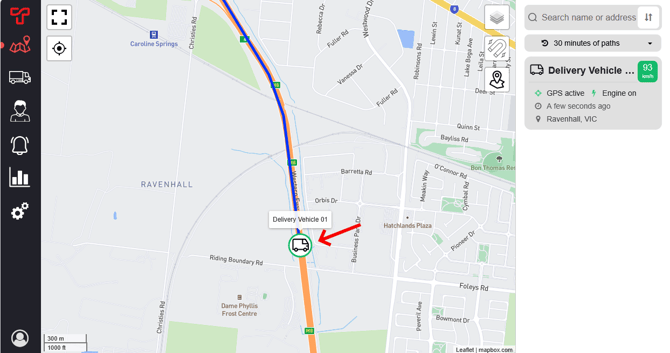
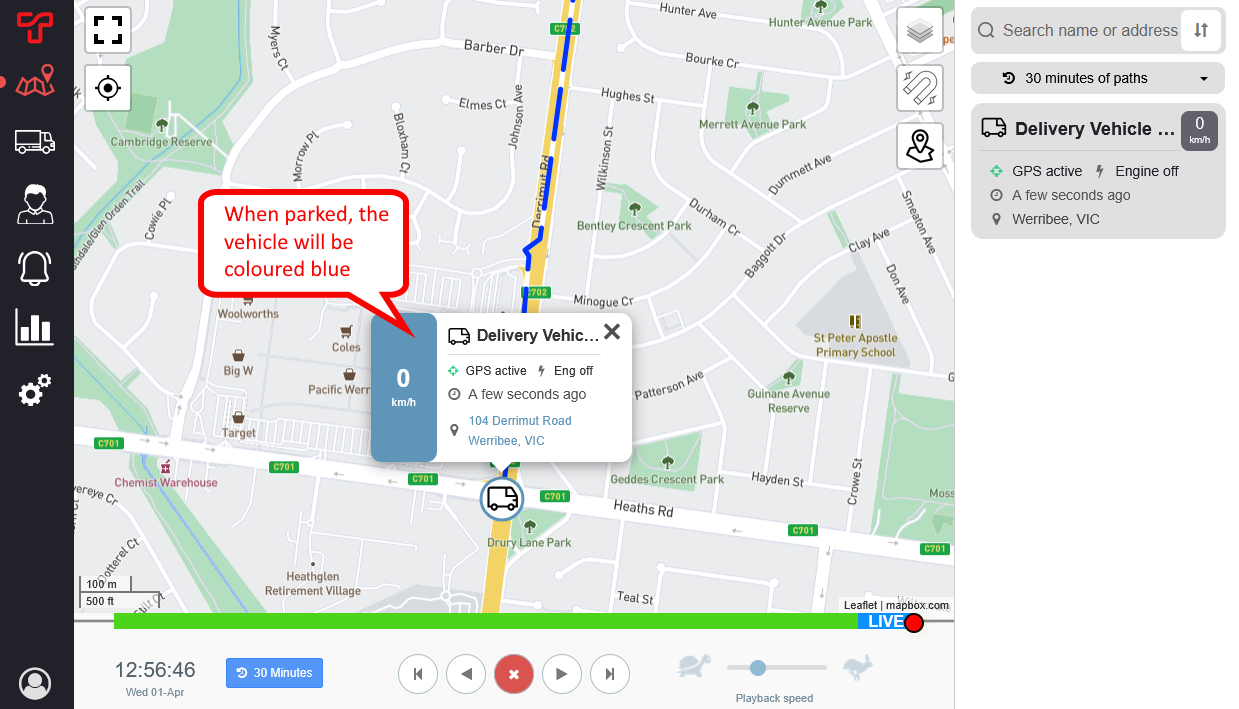
Each vehicle appears as a marker on the map with a coloured ring around it:
- Green ring = Vehicle is moving
- Blue ring = Vehicle is stopped
The same colours appear in the vehicle list on the right side of the map and in the vehicle's information popup when you click the vehicle's marker on the map.
You can change the icon of your vehicle as it appears on the map in the vehicle settings page (Truck icon on the right).
Vehicle paths over the past 24hrs (the coloured lines)
The line behind each vehicle shows where it's travelled recently. This is called the "trailing path". By default, your account will show the past 24 hours of traveling paths. You can view further back in history for an individual vehicle by clicking on its map marker.
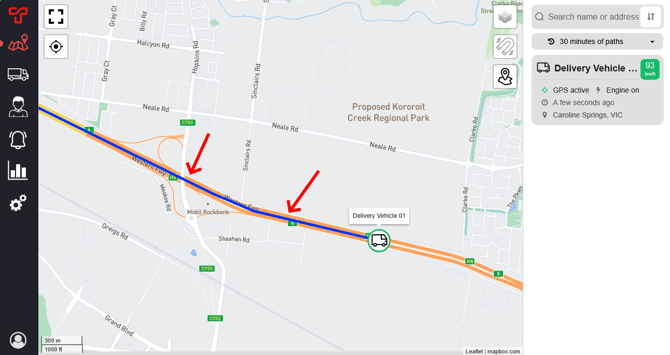
To change the duration of paths from the past 24hrs that are shown :
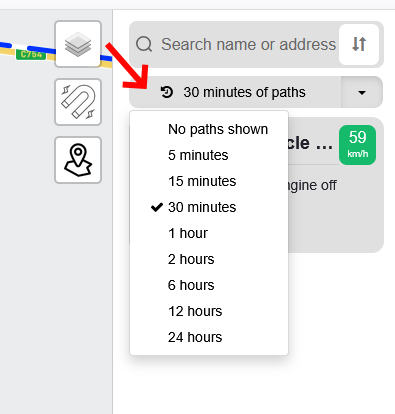
- Click the Paths button (top right of map). On mobile click the search bar at the top of the map first, then click the Paths button.
- Choose the duration in minutes/hours of path to display on the map.
You can save your preference for the default duration of paths to show in the Account Settings area.
Stop markers (red signs)
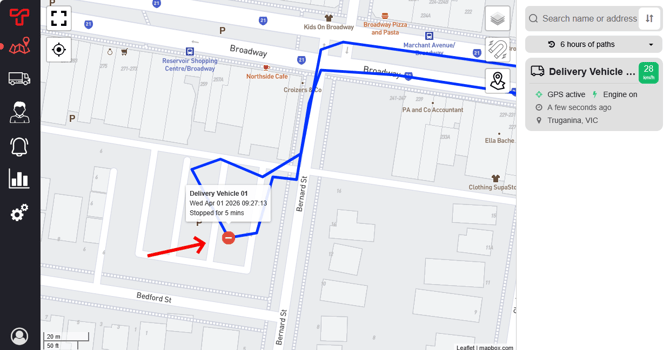
Red stop signs appear when a vehicle has stopped for more than 5 minutes.
You can change the default stopped duration from 5 minutes to your desired period before a stop is marked in the Account Settings page.
To see stop details: Click on the red stop sign to see:
- Which vehicle stopped
- How long they stopped for
- Exact time of stop
Vehicle status cards panel
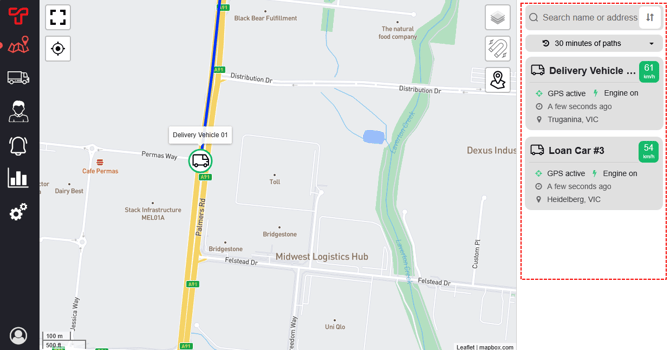
The right side of the map shows cards for each of your vehicles with real-time information. On mobile devices, you can access these cards by pressing the search bar at the top of the map.
For moving vehicles:
- Current speed
- "GPS connected" status
- Time of last update
For parked vehicles:
- "GPS standby" status indicates the tracker is in low power sleep mode
- How long since last movement
If there's a problem: The status card will show red warning messages like:
- Power disconnected
- GPS signal lost
- Other information for your attention
👉 To see more details about an issue: Go to the Vehicles page (truck icon) and expand the vehicle's information card.
Using GPS playback (viewing history)
Want to see where a vehicle has been in the past days, weeks, months or years ago? That's easy to do, you can use the vehicle playback mode to replay any of the historic tracking.
How to start playback
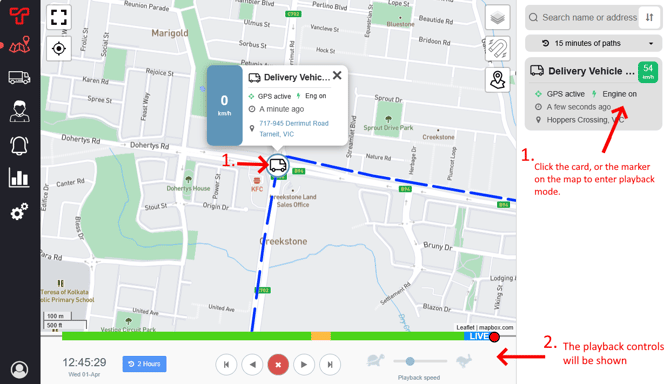
Click on either:
- The vehicle's marker on the map, OR
- The vehicle's card on the right side
The map switches to Playback mode and playback controls appear at the bottom of the map.
Playback controls (works like a video player)
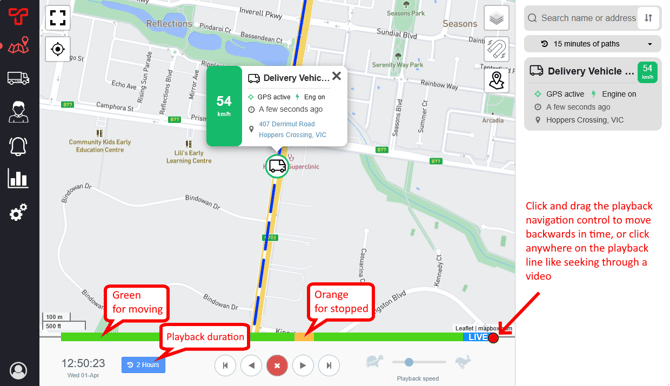
Once in playback mode, you can:
Play and navigate
- Play forward/backward – Use the play buttons (▶ ◀)
- Stop – Click the stop button (⏹)
- Seek through time – Drag the red dot along the timeline
- Skip to stops – Click on the orange segments on the playback timeline
Change playback speed

Drag the slider between the turtle 🐢 (slow) and rabbit 🐇 (fast) to control how fast the playback moves.
Change playback time period shown
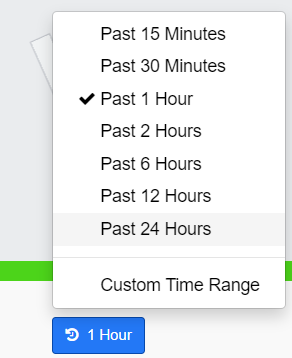
Click the blue button on the left (shows current time period like "1 Hour") to choose what time period you wish to view the playback history of :
Quick options:
- Past 15 minutes
- Past 30 minutes
- Past 1 hour
- Past 2 hours
- Past 6 hours
- Past 12 hours
- Past 24 hours
Custom time range:
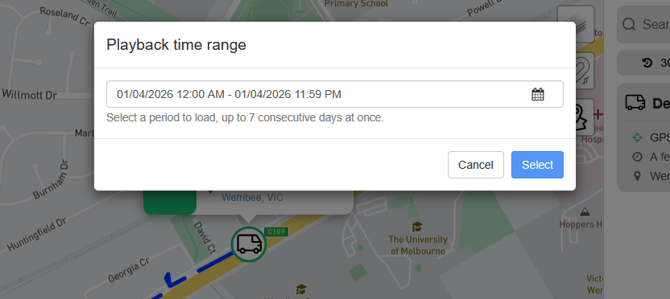
- Click "Custom Time Range"
- Select specific start and end dates/times
- Great for viewing journeys from days or weeks ago
Exiting playback mode
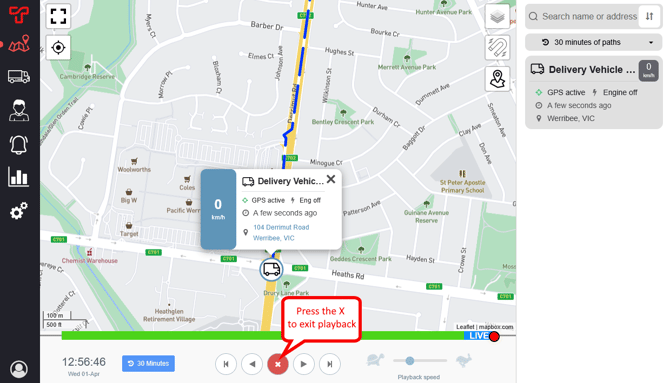
To return to live view, click the X button in the playback bar.
Tips for using the map
💡 Can't see a vehicle? Make sure it's not hidden in the filters or scroll down the vehicle list on the right. Check if you've got any value in the search field above the vehicle cards.
💡 Want to focus on one vehicle? Click its card or map marker to enter playback mode and the map will centre on it
💡 Check mobile coverage Enable the "Coverage" layer in Map Options to see where mobile network is available
💡 Save your preferences Your path display settings can be saved in Account Settings so they're the same every time you load the TMR app or login to your account.
What information can I see during playback?
While playing back a journey, you can see:
- Speed – How fast the vehicle was travelling
- Location – Exact address at any point in time
- Stops – Where and for how long
- Driver – If using Driver ID keyfobs
- Time – Exact date and time for each location point