
Use the Account page to open guided help, review recent changes or join early access. Early access lets you try eligible features before their general release, and you can leave the program from the same control. Current contractual and privacy terms remain on the official Track My Ride website.
A guided introduction to the application
View the interactive tutorial
Instructions for a product task
Support and FAQ
Details about a recent product change
View the change log
Leave a customer review
Use Review when the review request appears, or open the Track My Ride Google review page
Access to eligible pre-release features
Join the early access beta program
Change your password or permanently remove account data
Use the dedicated account guide linked below before selecting the matching Account control
Help with account-specific behaviour
Contact Support with the details listed below
Current contractual or privacy information
Official Track My Ride terms and privacy pages
Before you start
Early-access features can change, behave unexpectedly or be removed. Do not rely on them for a critical task. The interactive tutorial requires access to the Map page. Use only official Track My Ride pages when you need current legal or privacy terms.
Steps
Use self-help and review changes
- Open Settings > Account and find EXTRAS.
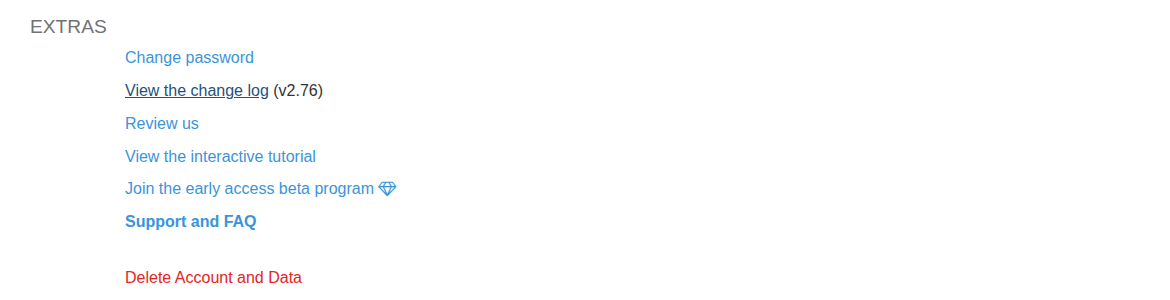
- Select View the interactive tutorial for an in-app walkthrough of the main controls.
- Select View the change log to check whether a recent release explains a changed screen or workflow.
- Select Support and FAQ when you need task instructions beyond the walkthrough.
Join or leave early access
- Under EXTRAS, select Join the early access beta program.
- Check the status shown in the dialog: Joined or Not yet joined.
- Read the current notice about incomplete features, performance and errors.
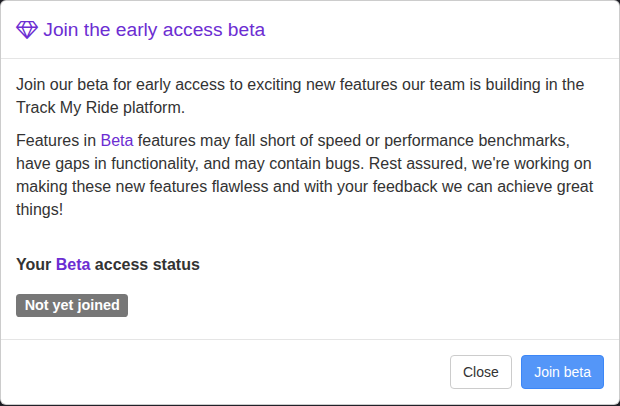
- Select Join beta only if that risk is acceptable. To opt out later, open the same dialog and select Leave beta.
- Acknowledge the confirmation. Track My Ride reloads the application to apply the change. Update the mobile app before testing mobile beta features.
Leave a review
Track My Ride may show Could you leave us a review? after you have used the application. Select Review to open the Track My Ride Google review page in a desktop browser. In the mobile app, the same action opens the Track My Ride listing in the Apple App Store or Google Play Store for that device.
You can also open the Track My Ride Google review page directly. Reviews are public, so do not include vehicle locations, registration numbers, employee names, account details, support references or other private information. Use Support instead when you need a response or help with a problem.
Get help
- Search Support and FAQ for the task or symptom before opening an account-specific request.
- For an account-specific issue, contact Support and include:
- The affected page and the action you were attempting.
- The vehicle, person, alert or report name involved.
- The exact date, time and account timezone for a tracking or alert issue.
- What you expected, what happened and any displayed error text.
- The troubleshooting checks already completed.
- Include a screenshot only after checking that it does not expose passwords, 2FA codes, API credentials, payment details or unrelated personal information.
- Keep one Support request per issue and add later examples to the same reference.
- Open the official terms and privacy pages when you need current legal information.
What happens next
Joining or leaving early access reloads Track My Ride. Eligible features may then appear immediately or in a later release. If the early-access control is absent, it is not available to your account. Keep the Support request reference so you can add further examples or affected times to the same investigation instead of opening duplicate requests.
Troubleshooting
- The early-access control is missing: The program is not currently available to that account or user. Check again after a product announcement rather than changing unrelated settings.
- You joined or left but the screen did not change: Allow the application reload to finish, then sign out and back in once. Some beta features are released separately and may not appear immediately.
- A pre-release feature behaves unexpectedly: Record the page, exact steps and result, then use the feedback option or Support contact method shown for the program. Do not rely on the feature for a critical task until the behaviour is resolved.
- The tutorial is unavailable: Ask an administrator whether your account has Map page permission. The tutorial cannot start without it.
- Support requests more detail: Send the affected record names, times, timezone and error text. Support can investigate without your password.
- You need help rather than leaving a public review: Contact Support with the diagnostic details above. Do not post account or location information in a review.
- A screenshot contains sensitive information: Redact unrelated personal data and credentials before attaching it. Never send a password, 2FA code, backup code, API key, user key or full payment details.