
Use the top-level account to reactivate an inactive tracker, replace unsupported third-generation (3G) mobile-network hardware or prepare a tracker for a new owner. A hardware licence allows an activated tracker to report data to Track My Ride.
Before you start
You must be signed in to the top-level account. Before you continue, choose the task that matches your situation:
- Reactivate a tracker when you want an inactive unit to report to the same account again. Review the price, effective date and billing notice shown before confirming.
- Transfer a tracker when you sell or give the tracked vehicle or device to someone else. The original owner must deactivate it and authorise Support to remove it before the new owner can activate it. Historical account records remain private and do not transfer.
- Upgrade a 3G tracker when it can no longer use the available mobile network. A 3G tracker cannot be restored after the network it uses becomes unavailable.
Steps
Reactivate a tracker
- Open Settings > Account.
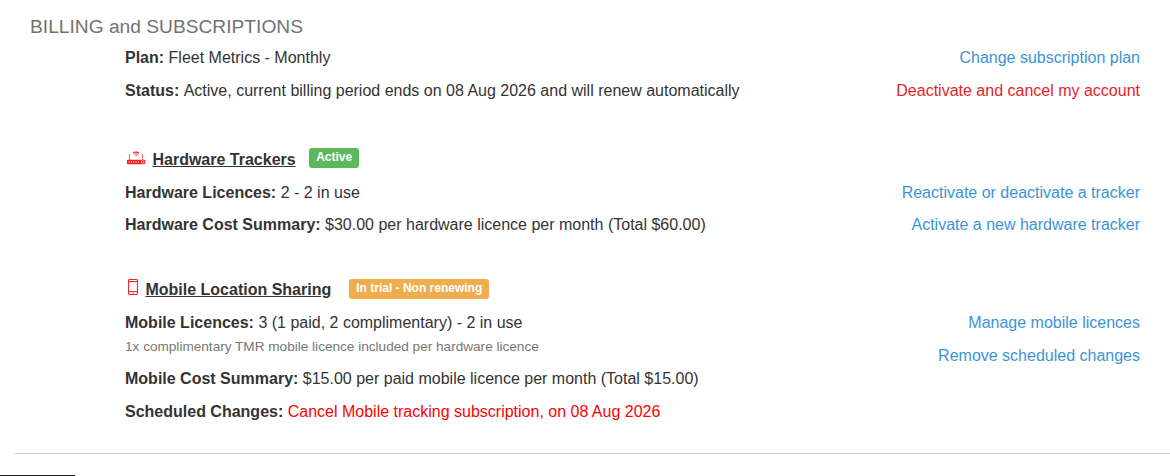
- Select Reactivate or deactivate a tracker.
- Under Reactivate hardware tracker(s), choose the inactive tracker.
- Review the displayed price, effective date and billing notice, then submit the change.
- Keep the tracker powered and within mobile coverage, then check Vehicles for a new report. Processing and first communication times vary. Legacy 3G trackers cannot be reactivated.
Transfer a tracker to a new owner
The original owner and new owner must use separate Track My Ride accounts. Do not give the new owner your username, password, API keys or a shared login. Sharing your account would expose your historical location data.
1. Record the Communication ID
Find the tracker's six- or eight-character Communication ID before deactivating it. It is printed on the tracker label and original packaging. In the current web app, open Vehicles, expand the vehicle's details and look for Comms ID.
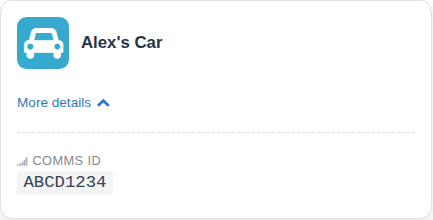
Record the code accurately and keep it available for the new owner. The Communication ID alone does not give the new owner access while the tracker remains linked to your account.
2. Deactivate the tracker
- Sign in to the original owner's top-level account.
- Open Settings > Account and select Reactivate or deactivate a tracker.
- Under Deactivate hardware tracker(s), select the vehicle and Communication ID being transferred.
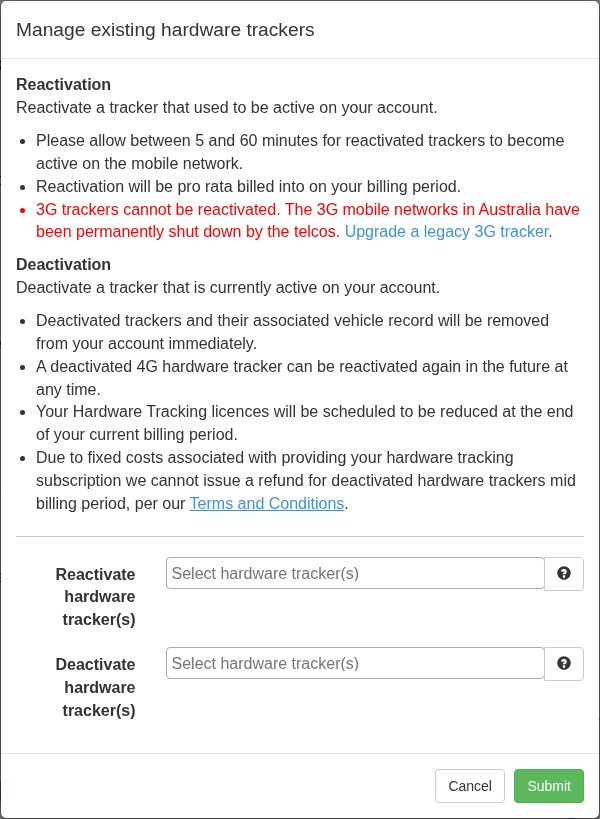
- Review the displayed removal, billing and effective-date warnings, then submit the deactivation. Confirm that the vehicle no longer appears in the active list and retain the confirmation for your records.
Deactivation stops billing renewal for that tracker and authorises the next removal step. It does not by itself make the tracker available for another account.
3. Authorise Support to remove it
Email support@trackmyride.com.au from the original account's email address. Include the Communication ID and clearly authorise Track My Ride to remove that tracker from the account because ownership is changing.
Support can remove the tracker only after it has been deactivated. Wait for Support to confirm that removal is complete before the new owner attempts activation.
4. New owner activation
- Give the Communication ID to the new owner after Support confirms removal.
- The new owner creates their own Track My Ride account at app.trackmyride.com.au or signs in to their existing top-level account.
- During hardware tracker setup, the new owner enters the Communication ID and completes activation and billing in their own account.
- After activation, wait for the tracker to send a report and confirm that the vehicle appears under Vehicles.
The new owner's tracking history starts clean. Historical journeys, locations and account records remain with the original owner's account and are not disclosed or transferred.
Upgrade a 3G tracker
- Open Settings > Account and select Upgrade 3G trackers.
- If you do not yet have the replacement, select View upgrade offer and complete the displayed order process. Return to this page when the new 4G tracker is ready to install.
- Under Select a 3G tracker to upgrade, choose the old tracker being replaced. When replacing several units, confirm the vehicle and Communication ID before continuing with each one.
- Enter the replacement tracker's Communication ID, then select Upgrade tracker.
- Follow the installation message shown for that old tracker. Re-wire and correct position required means the replacement must be installed as a new tracker. You can use the same cable means the existing cable is compatible, but the tracker may still need repositioning for a clear GPS signal.
- Select Continue with install and complete the physical installation. Use the linked installation guide or a professional installer when rewiring is required.
- Select I've installed my new tracker only after the replacement is connected. This deactivates the selected 3G tracker and assigns the new tracker to its vehicle.
- Allow 5-60 minutes for the new tracker to connect, then complete a short test drive and confirm that the vehicle updates correctly on the live map.
- Select Upgrade another 3G tracker to repeat the process for another unit. A 3G unit cannot be reactivated after the network shutdown.
What happens next
An active, supported tracker uses a hardware licence and appears under Vehicles after it reports. A completed ownership transfer gives the new owner access only to data recorded under their own account; historical records remain private to the original account.
Troubleshooting
- The tracker is not available to the new owner: Confirm that the original owner deactivated it and that Support confirmed removal. Do not create a second vehicle to work around a pending transfer.
- Support cannot remove the tracker: Send the request from the original account email, include the Communication ID and confirm that deactivation is complete.
- The Communication ID is rejected: Check every character against the tracker label or packaging. The code contains six or eight letters and numbers.
- A reactivated tracker remains offline: Check the processing status shown during reactivation, confirm the unit has power and then follow the tracker connection troubleshooting steps.
- An upgrade needs different wiring: Stop before confirming installation and follow the wizard's Re-wire and correct position required guidance. Arrange a professional installation if you are not authorised or equipped to complete the work.
- An action is unavailable: Confirm that you are signed in to the top-level account and that the subscription can manage hardware licences.