
Use Reports > Refueling to record fuel added to a vehicle and compare consumption between refuels. Use Reports > Maintenance to find tracked vehicles approaching or exceeding a distance-based service interval.
The Maintenance report is a due-distance list, not a service log. It does not record completed work or reset a vehicle's service history.
Before you start
These reports need reliable vehicle odometer and journey data. Correct any known odometer discrepancy before using the results to plan maintenance.
The Refueling report assumes that the tank is filled completely at every recorded refuel. Missing entries, partial fills or fuel entered against the wrong vehicle can make the calculated L/100km and deviation misleading. Mobile Location Sharing vehicles are not available for refuelling records.
Keep fuel receipts until you have checked the saved time, vehicle, litres and cents per litre. Fuel and service information may be commercially sensitive, so share exports only with authorised recipients.
Steps
Add and review a refuelling record
- Open Reports > Refueling.
- Under New Refueling Record, set the date and time shown on the receipt.
- Select the vehicle that received the fuel.
- Enter Litres and Cents Per Litre, then select Save.
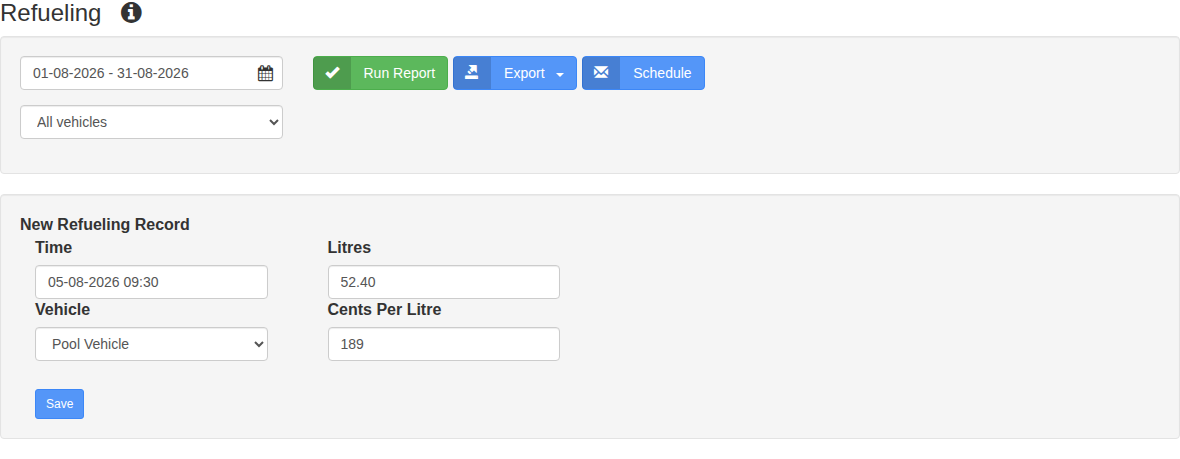
- Set the report date range and vehicle filter, then select Run Report.
- Check the saved record. The results can show the previous refuel, journeys, travel time and distance between records, calculated L/100km, deviation from average, litres, price and total cost.
- To correct litres or cents per litre, edit the value in the results and move out of the field. Wait for confirmation that the change was saved, then rerun the report.
- Delete a record only when it belongs to the wrong vehicle or cannot be corrected. Confirm the deletion, then rerun the report so later calculations use the remaining records.
Treat an unusual result as a prompt to check the source records, not proof of fuel misuse. Confirm that consecutive entries are complete fills, the refuel times are correct and no receipt is missing before investigating further.
Review vehicles due for maintenance
- Open Reports > Maintenance.
- Select Options and enter the distance between services used by your organisation. The default interval is 10,000 km.
- Select Run Report.
- Review each listed vehicle's recorded time, odometer and notes. The report includes vehicles within 20% of their next interval and vehicles that have passed it by up to or beyond the report's overdue threshold.

- Confirm the current odometer and service history outside the report before booking work.
- Export the results when an authorised service coordinator needs the list. To receive it regularly, select Schedule if your account supports recurring delivery for this report, then follow Schedule reports for email delivery to manage the saved schedule.
What happens next
New refuelling records contribute to later fuel calculations. Correcting or deleting a record changes calculations that depend on it the next time the report runs.
The Maintenance report is a distance-based planning aid; it does not record that a service was completed. After servicing a vehicle, keep your normal service record and make sure the vehicle's odometer information remains accurate.
Troubleshooting
- Fuel consumption is much higher or lower than expected: Check for a partial fill, missing receipt, incorrect litres, wrong vehicle or inaccurate odometer data.
- A recent refuel is missing: Widen the date range, select the correct vehicle and rerun the report. If it was not saved, add it using the receipt time.
- A mobile-shared person or virtual vehicle is missing: Refuelling records are limited to eligible tracked vehicles.
- A serviced vehicle still appears in Maintenance: The report is based on odometer and interval data rather than a completed-service register. Confirm the interval and current odometer.
- Maintenance is empty: Confirm the configured interval and odometer data. Vehicles outside the approaching or overdue window are not listed.