
Two-factor authentication (2FA) protects your Track My Ride login with your password and a changing six-digit code from an authenticator app. If someone learns your password, they still cannot sign in without your authenticator or a one-time backup code.
Each Track My Ride user enables 2FA for their own login. A top-level account and its sub-account users manage 2FA separately.
Before you start
Install an authenticator app on a phone or another device you control. Authy and Google Authenticator are examples. You can also use another app that supports time-based one-time passwords and can scan the setup QR code.
Have a secure place ready for the two backup codes shown after setup. Use a password manager or protected offline record that you can reach if your phone is lost. Do not store the codes on the same unlocked device as the authenticator. Never send your password, QR code, authenticator code or backup code to Support.
Make sure the authenticator device's date and time are set automatically. Incorrect device time can cause a current code to be rejected.
Steps
Enable 2FA
- Sign in to Track My Ride and open Settings > Security.

- Under Two-Factor Authentication, select Enable 2FA.
- Scan the displayed QR code with your authenticator app. If scanning is unavailable, type the setup code shown beneath the QR image into the app. This setup code lets an authenticator create valid sign-in codes, so protect it like a password.
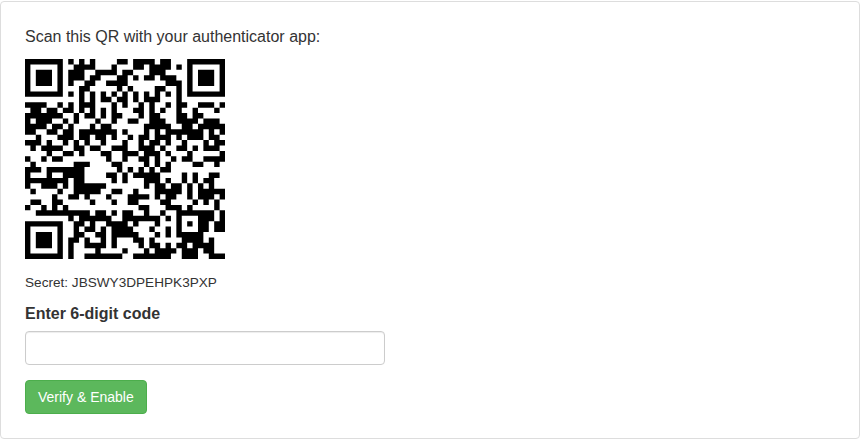
- Enter the current six-digit code from the authenticator app and select Verify & Enable. Wait for a new code and try again if the displayed code was about to expire.
- Save both backup codes immediately. They are shown only once, and each code works only once.
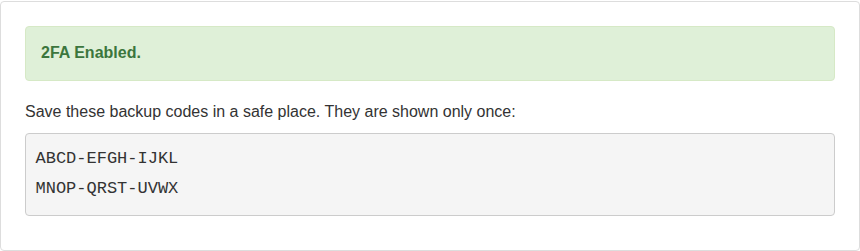
- Sign out, then sign in with your password and a current authenticator code. This confirms that the authenticator entry works before you rely on the backup codes.
Sign in with 2FA
- Enter your username and password as usual.
- At Two-Factor Authentication, enter the current six-digit authenticator code and select Verify.
- If the authenticator is unavailable, enter one unused backup code instead. Track My Ride emails a security notice when a backup code is used. Remove that code from your stored list because it cannot be used again.
Move 2FA to a replacement phone
Do this before wiping or returning the old phone.
- Keep the old authenticator available and sign in to Track My Ride.
- Open Settings > Security and select Disable 2FA.
- Enter your account password and the current six-digit code from the old authenticator, then confirm.
- Select Enable 2FA and scan the new QR code with the replacement phone.
- Verify a code from the replacement phone and save the newly generated backup codes. Delete the old authenticator entry and old backup codes only after the new login has been tested.
Disabling and re-enabling 2FA creates a new authenticator setup code and new backup codes. The previously saved codes no longer work.
Disable 2FA
- Open Settings > Security and select Disable 2FA.
- Enter your account password and current six-digit authenticator code.
- Confirm the action, then check that the Security tab reports that 2FA is not enabled.
Disable 2FA only when necessary. Re-enable it promptly after replacing an authenticator device or resolving a login problem.
What happens next
After 2FA is enabled, Track My Ride requests an authenticator or backup code after a successful password check. Track My Ride can also request a current 2FA code for sensitive account actions, including creating or deleting API keys and changing protected sharing settings.
Backup codes are emergency sign-in credentials, not reusable passwords. If a backup code is used unexpectedly, change the account password, review Settings > Security for unfamiliar sessions and contact Support without sending any credentials.
Troubleshooting
- A six-digit code is rejected: Confirm that you selected the Track My Ride entry, your device time is automatic and the code has not just expired. Wait for the next code and enter it once.
- Too many incorrect attempts: Stop retrying and wait for the displayed lockout period. Sign in again when instructed to obtain a new verification session.
- The phone is lost but you have a backup code: Sign in with one unused backup code. If you cannot do that, select Try recovery on the screen that asks for your six-digit code.
- The phone and all backup codes are unavailable: Select Try recovery on the screen that asks for your six-digit code, or contact Support for verified account recovery. Support should not ask for your password or authenticator setup code.
- A backup code was used unexpectedly: Change your password, review active sessions and secure the remaining codes immediately. Reconfigure 2FA if the stored codes may have been exposed.
- Enable 2FA is unavailable: Demo accounts cannot enable 2FA. For another account, refresh the Security tab and contact Support if its status cannot be loaded.