
Map sharing lets you give customers, family members or another organisation a live view of selected vehicles and people without giving them a Track My Ride login. You can send a unique web link or embed the same map on your website. An embed displays the shared map within one of your website's pages.
The shared map shows each permitted vehicle or person's name, current location and last update time. It does not show journey history or tracking paths.
To stop some viewers seeing a vehicle, remove that vehicle from the sub-account's permissions. To hide a home address or another sensitive place while keeping the vehicle visible elsewhere, use an exclusion zone. Do not turn off or disconnect the tracker to control shared-map access.
See a shared map
Open the example shared map in a new browser tab, or try it below. This example is read-only and does not require a Track My Ride login.
Before you start
- Map sharing requires a plan that includes Sub-Accounts. Check the Track My Ride pricing page if the feature is unavailable.
- You must be signed in to the top-level account.
- Decide which vehicles and people viewers may see. Obtain permission before sharing a person's location.
- Identify private places, such as employee homes or sensitive business locations, that must be hidden with exclusion zones.
- If you will embed the map, you need access to edit your website's HTML or help from your website administrator.
Anyone who has the sharing link can view the permitted live locations without signing in. Treat the link as sensitive and send it only to intended viewers.
Steps
1. Create or choose a sub-account
Map sharing uses a sub-account to decide what the public map can display. The map viewer does not use the sub-account's email address or password.
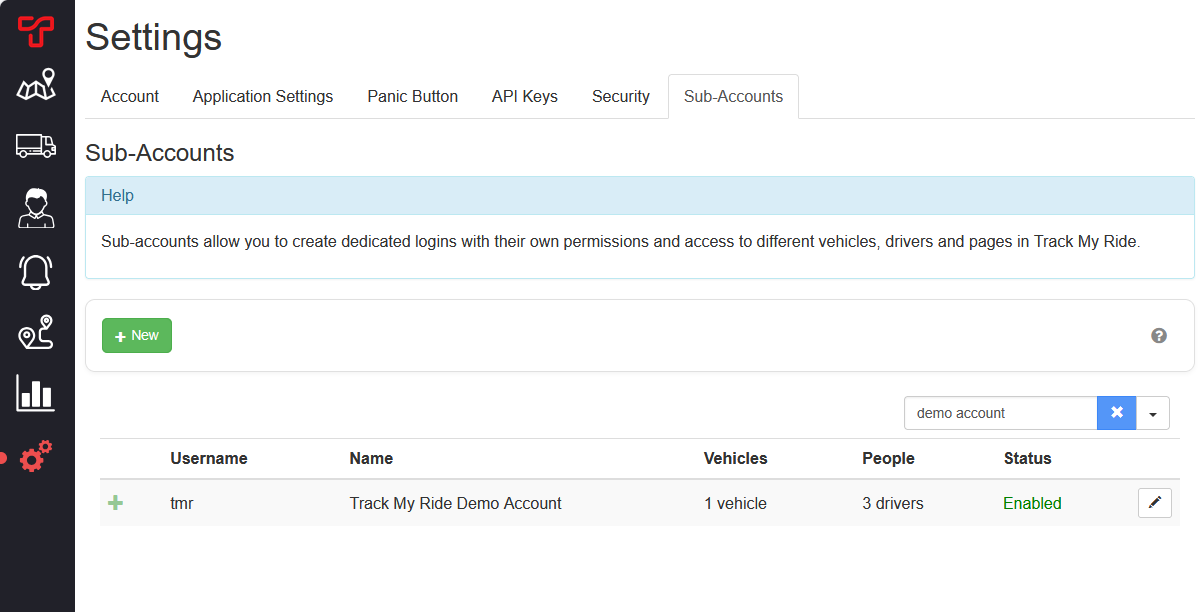
- Open Settings > Sub-Accounts.
- Select an existing sub-account created for this audience, or select New.
- If the sub-account is only for map sharing, give it a clear name such as
Customer delivery map. Use an email address controlled by your organisation in case you later use the account for sign-in or password recovery. - If you created a sub-account, save it before continuing. Then select its pencil icon to edit it.
2. Choose what viewers can see
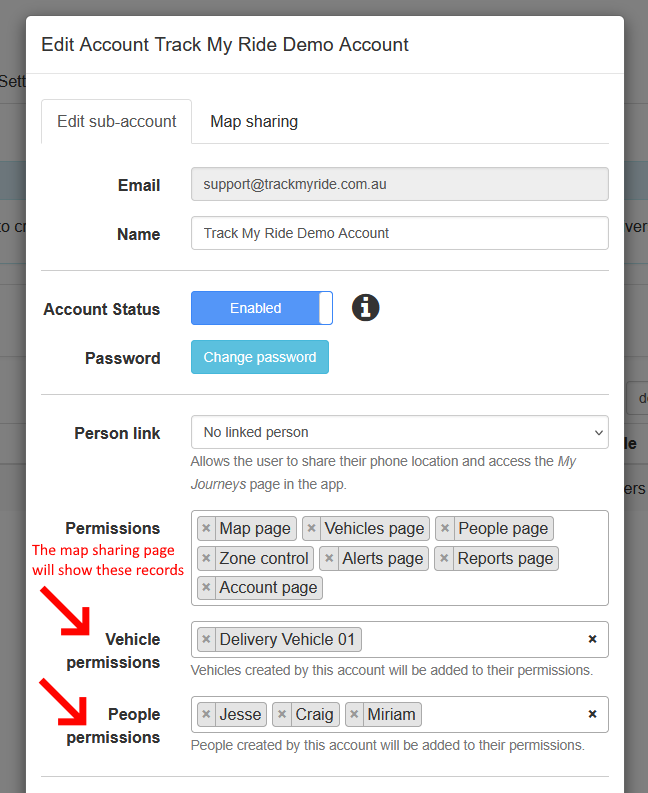
On the Edit sub-account tab:
- Under Vehicle permissions, select only the vehicles that should appear on the shared map.
- Under People permissions, select only the people whose phone location may appear.
- Review the selections carefully. The shared map uses these vehicle and people permissions; viewers do not need application-page permissions to open the public link.
3. Hide locations with exclusion zones
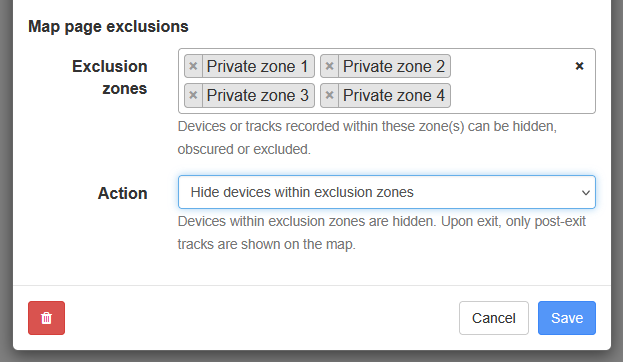
Use exclusion zones to protect employee homes, warehouses, customer sites or other sensitive places. When a permitted vehicle or person enters a hidden zone, it disappears from the shared map. It reappears after leaving the zone and sending a new location.
- In the sub-account editor, find Map page exclusions.
- Select the zones that must be private.
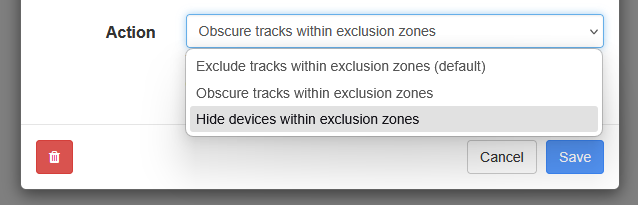
- Set Action to Hide devices within exclusion zones.
- Select Save.
The other actions, Exclude tracks within exclusion zones and Obscure tracks within exclusion zones, affect historical tracks shown to a signed-in sub-account. They do not hide a current location on the shared map because map sharing does not display tracks.
4. Turn on map sharing
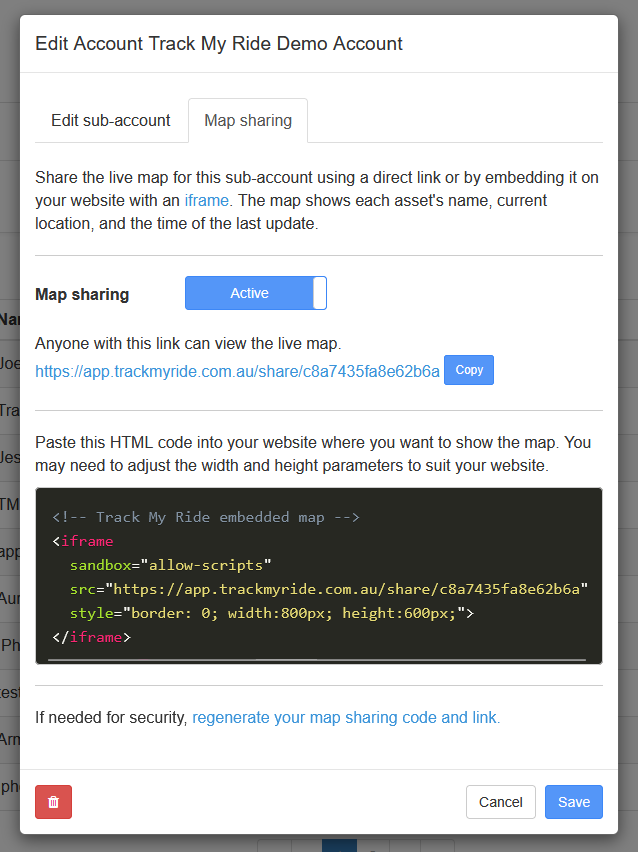
- Open the sub-account's Map sharing tab.
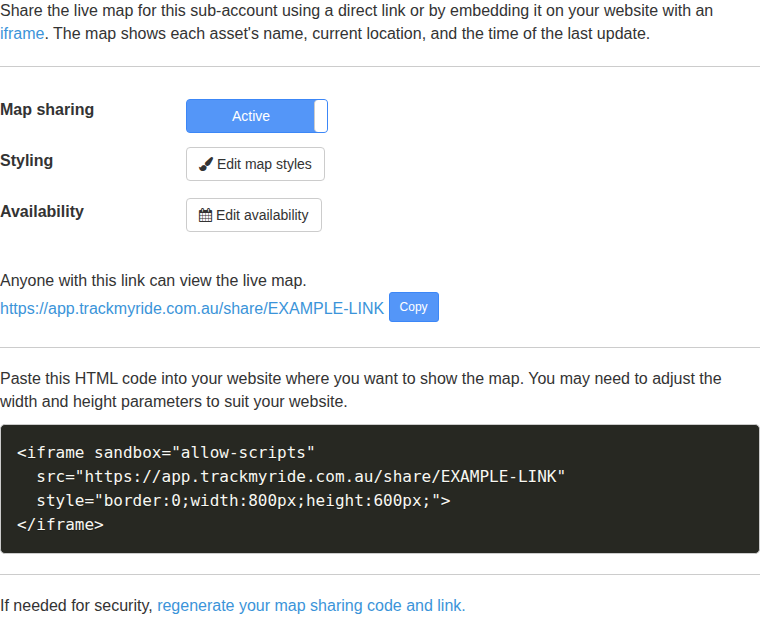
- Set Map sharing to Active.
- Select Save.
Track My Ride generates a unique direct link and iframe code. If the tab does not show a sharing link for a new sub-account, save the sub-account, close the editor, then open it again with the pencil icon.
5. Customise the shared map
On the Map sharing tab, select Edit map styles.
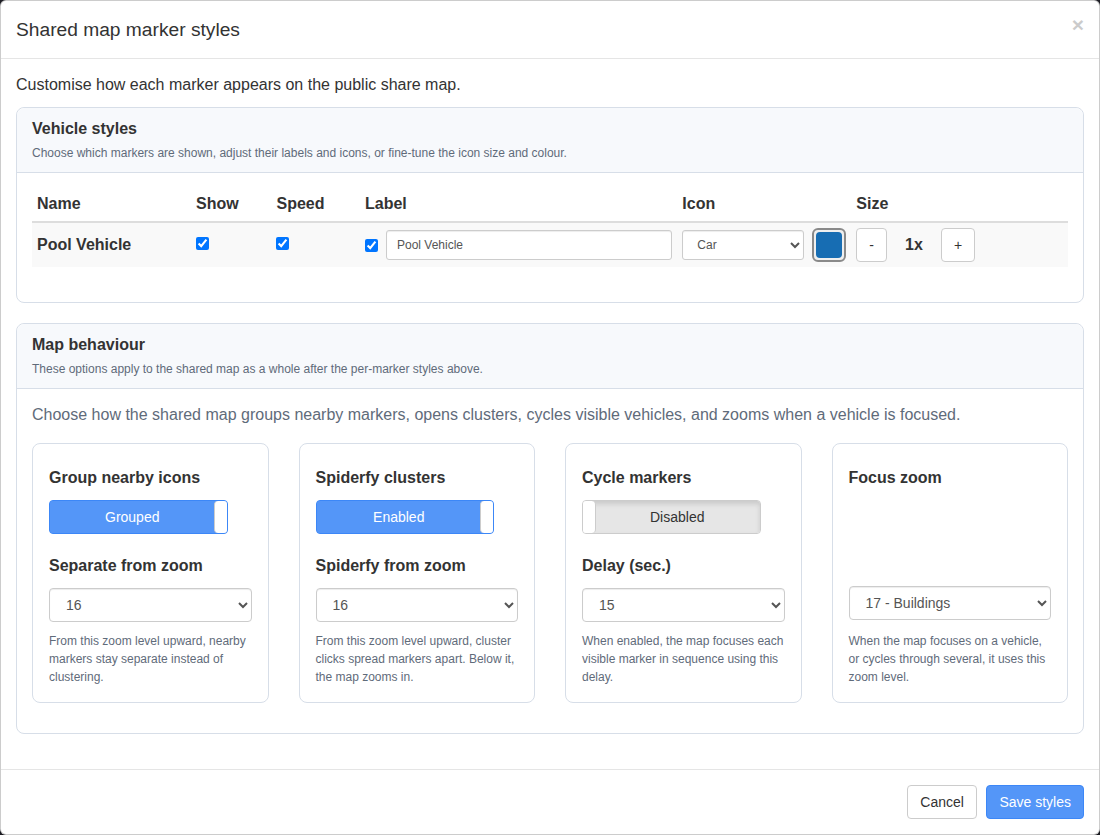
For each permitted marker, choose whether it is visible and whether viewers see its speed and label. You can replace the displayed label, choose an icon, set its colour and adjust its size. These display choices do not grant access to a vehicle or person; record access still comes from the sub-account permissions.
The shared-map options apply across the whole view:
- Group nearby icons combines close markers into clusters. Separate from zoom keeps markers separate from the selected zoom level upward.
- Spiderfy clusters spreads overlapping markers apart when a viewer selects a cluster at or above the configured zoom.
- Cycle markers automatically focuses each visible marker using the selected delay.
- Focus zoom controls the zoom level used when the map focuses or cycles to a marker.
Select Save styles, then test the direct link on both desktop and mobile. Long replacement labels can obscure nearby markers, so keep them concise.
6. Limit when the shared map is available
Select Edit availability when viewers should have access only during defined periods.
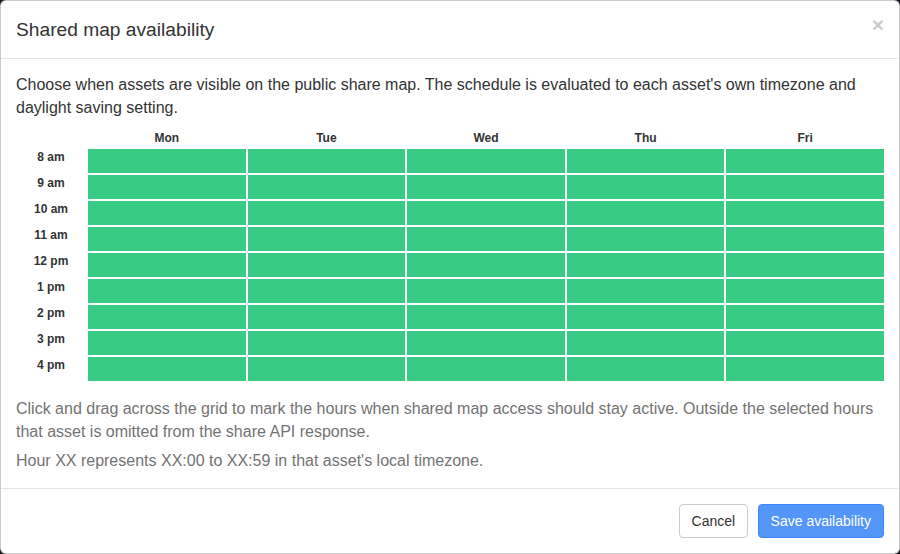
Click or drag across the grid to mark available hours in green, then select Save availability. Each number means that whole hour: for example, 9 am means 9:00 am through 9:59 am.
The schedule uses the timezone and daylight-saving setting saved for each shared vehicle or person. Two devices in different timezones can therefore become visible at different real-world times. Before distributing the link, check those settings and test the link once during a green hour and once outside the green hours.
7. Choose how to share the map
Send the direct link
Select Copy beside the generated link and send it to the intended viewers. They can open it in a current web browser without an account or additional software.
A sharing link has this format:
https://app.trackmyride.com.au/share/your-sharing-code
Embed the map on a website
Copy the website embed code shown on the Map sharing tab and paste it into your website where the map should appear. This code displays the shared map inside another webpage. The generated code is equivalent to:
Change the width and height values to suit your page. Test the direct sharing link first. If the direct link works but the map is blank on your website, send the embed code to your website administrator and ask them to allow the Track My Ride share address in embedded content. Track My Ride Support cannot change your website settings for you.
8. Test the shared view
- Open the direct link in a private/incognito browser window where you are not signed in to Track My Ride.
- Confirm that only the intended vehicles and people appear.
- Where practical, confirm that a device inside each exclusion zone is hidden.
- Check the embedded version on desktop and mobile if you added it to a website.
- Confirm marker labels, icons, clustering and cycling behave as intended.
- If availability is restricted, test the unavailable response outside the configured hours.
- Record who received the link and when access should be reviewed.
What happens next
Vehicle tracker and phone locations update on the shared map as Track My Ride receives new positions. Viewers see only current locations allowed by the sub-account's vehicle, people and exclusion-zone settings.
You can set Map sharing to inactive and reactivate it later without changing the sharing code. Review the sub-account whenever the audience or privacy requirements change.
Replace a shared link
If a link reaches the wrong person or is posted publicly, open the sub-account's Map sharing tab and select regenerate your map sharing code and link. Confirm the change, save the sub-account, and send the new link only to approved viewers.
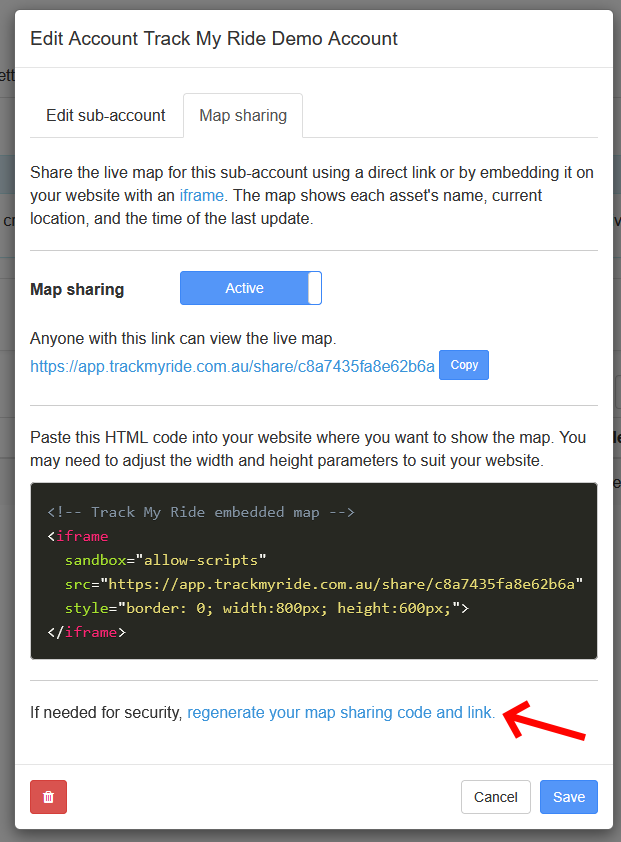
Regenerating the code invalidates the old URL immediately. If the map is embedded on a website, replace the old iframe code there as well.
Troubleshooting
- The Map sharing tab is unavailable: Confirm that the account's plan includes Sub-Accounts and that you are editing from the top-level account.
- A new sub-account has no sharing link: Save the sub-account first, close the editor, then select its pencil icon and reopen Map sharing.
- Too many vehicles or people are visible: Set map sharing to inactive immediately. Review the sub-account's vehicle and people permissions, save, test in a private window, then reactivate sharing.
- A vehicle or person is missing: Confirm that the record is selected in the sub-account and has reported a recent location. A device inside a hidden exclusion zone will not appear.
- A sensitive location is visible: Set map sharing to inactive. Confirm the zone is selected and its action is Hide devices within exclusion zones, then save and test again before reactivating.
- The iframe is blank or blocked: Test the direct link first. If it works, check that the iframe
srccontains the current sharing code and ask your website administrator to allow the Track My Ride share URL. - The old link still appears on your website: Regenerating a code does not edit your website. Replace the iframe's
srcor paste the newly generated iframe code. - Markers overlap or a label covers another marker: Enable grouping or spiderfying, shorten custom labels, reduce icon size, or separate markers from a more appropriate zoom level.
- The map cycles too quickly: Increase the cycle delay or turn Cycle markers off, then save styles.
- The link is unavailable at the wrong time: Review the availability grid and the affected asset's timezone and daylight-saving setting, then retest in a private browser window.
- Sharing is no longer required: Set Map sharing to inactive. Disable or delete the dedicated sub-account if it has no other purpose.