
Paid Plan Required : Map sharing requires a service plan with the sub accounts feature. Check the pricing page at https://www.trackmyride.com.au/pricing
Why Use Map Sharing
Map sharing allows you to show your vehicles on your own website, or give a unique web address to someone. You have full control over what others can see. You decide which vehicles and drivers they see, you can hide sensitive areas using exclusion zones, and your main account still has full visibility while shared map viewers can only see what you allow.
Setting Up Map Sharing
Map sharing uses the sub account system. Sub accounts are typically used to give access to your tracking data to a team member or family member so they can have their own unique login with an email and password, but they can also be used for map sharing.
Step 1: Create or Choose a Sub Account
Navigate to the settings page and click the Sub Accounts tab.
Either pick an existing sub account or create a new one.
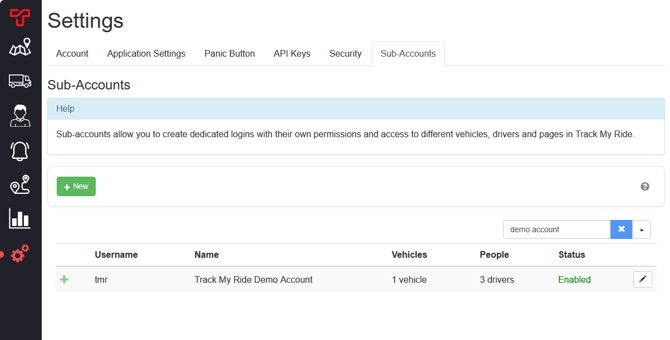
If you're creating this sub account just for sharing the map and not for someone to log in, you can use a throwaway email address like mapshare@yourdomain.com, the email address doesn't need to exist to be used.
In that sub account's settings, choose which vehicles and people will be shown on the map sharing page, and set up any exclusion zones (areas you want hidden from the shared map).
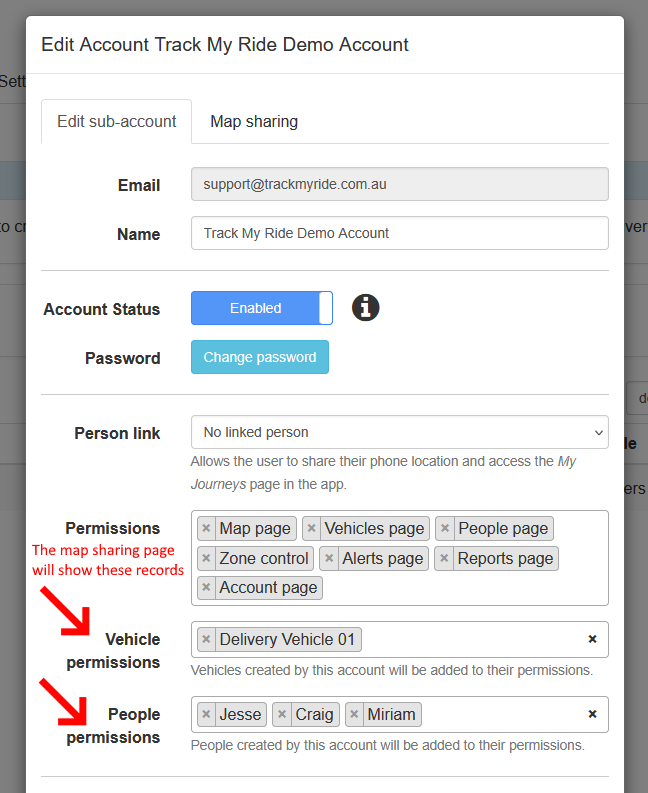
Setup the Exclusion Zones
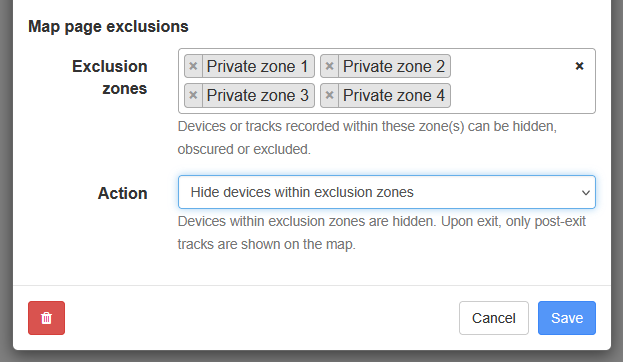
Hide certain geographic areas from the shared map such as employee homes or sensitive business locations. When a vehicle enters one of those zones, it disappears from the shared map view. When it leaves, it reappears. This is perfect for protecting employee home addresses, sensitive business locations, warehouse locations, and strategic delivery points.
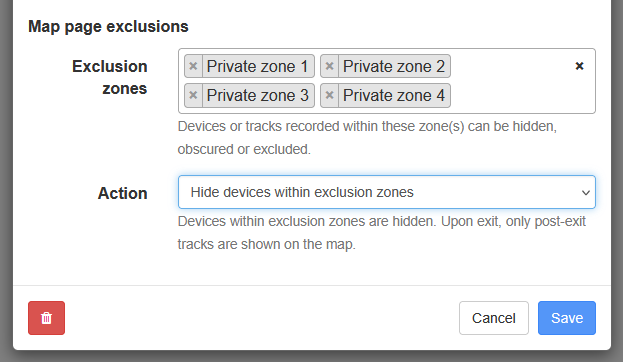
Important: With sub accounts you can choose from some different options to hide or obscure the data for vehicles, people and tracks that fall within the exclusion zones for the user that logs into the sub account with a username and password.
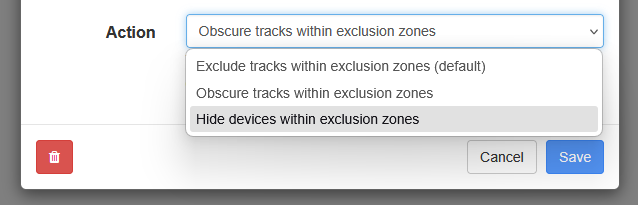
As the map sharing only shares the current location of the vehicle, only the "Hide devices within exclusion zones" option will hide the location of the vehicle on the shared map. The other two options which hide tracks will have no effect on the map sharing page if selected.
Step 2: Turn On Map Sharing
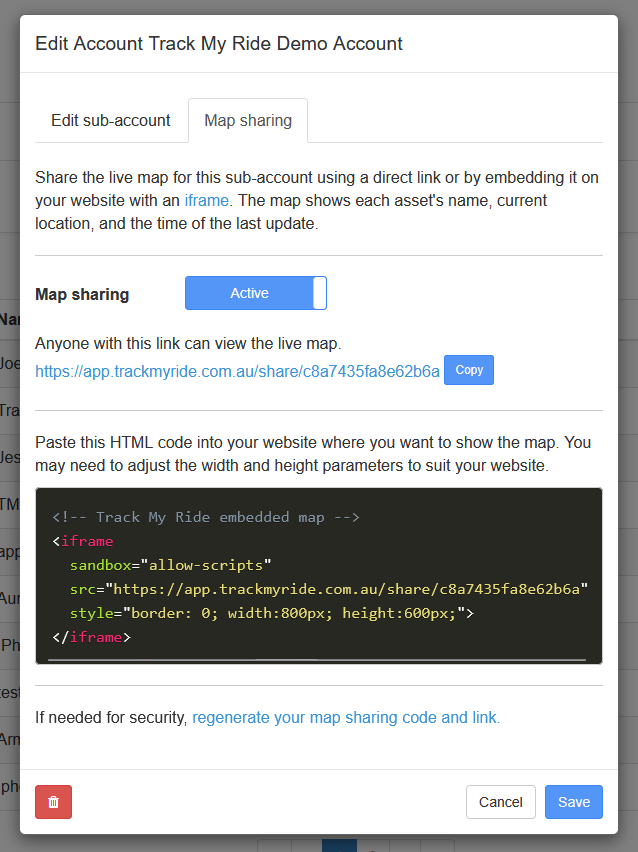
In that sub account, go to the "Map Sharing" tab.
Toggle the switch to Active.
A unique sharing code or URL will be generated for you.
If you just created the sub account, make sure you save the account first, then click the edit or pencil icon to get the sharing code.
Step 3: Decide How to Share Access
Option A: Direct URL
Copy the generated link and share it with your recipients via email, message, or other communication. Recipients just click the link and no login is needed. Anyone with the link can view the map, so treat it like you would any public share.
Example direct URL: https://app.trackmyride.com.au/share/c8a7435fa8e62b6a
Option B: Embed on Your Website
Copy the HTML iframe code provided. Paste that code into your website in the place you want the map to appear. You can change the width and height values in the code to match your site's layout or requirements, 800x600 pixels is the default.
<!-- Track My Ride embedded map -->
<iframe
  sandbox="allow-scripts"
  src="https://app.trackmyride.com.au/share/c8a7435fa8e62b6a"
  style="border: 0; width:800px; height:600px;">
</iframe>
Step 4: Save Your Changes
Once everything is set including sub account settings, sharing turned on, and method selected, make sure you hit Save. Your map sharing is now live.
Privacy and Security
Exclusion Zones
Hide certain geographic areas from the shared map such as employee homes or sensitive business locations. When a vehicle enters one of those zones, it disappears from the shared map view. When it leaves, it reappears. This is perfect for protecting employee home addresses, sensitive business locations, warehouse locations, and strategic delivery points.
Important: With sub accounts you can choose from some different options to hide or obscure the data for vehicles, people and tracks that fall within the exclusion zones for the user that logs into the sub account with a username and password.
As the map sharing only shares the current location of the vehicle, only the "Hide devices within exclusion zones" option will hide the location of the vehicle on the shared map. The other two options which hide tracks will have no effect on the map sharing page if selected.
Access Control - Regenerating the unique URL
You pick exactly which vehicles and drivers are visible to the shared sub account. Your main account remains fully visible to you.
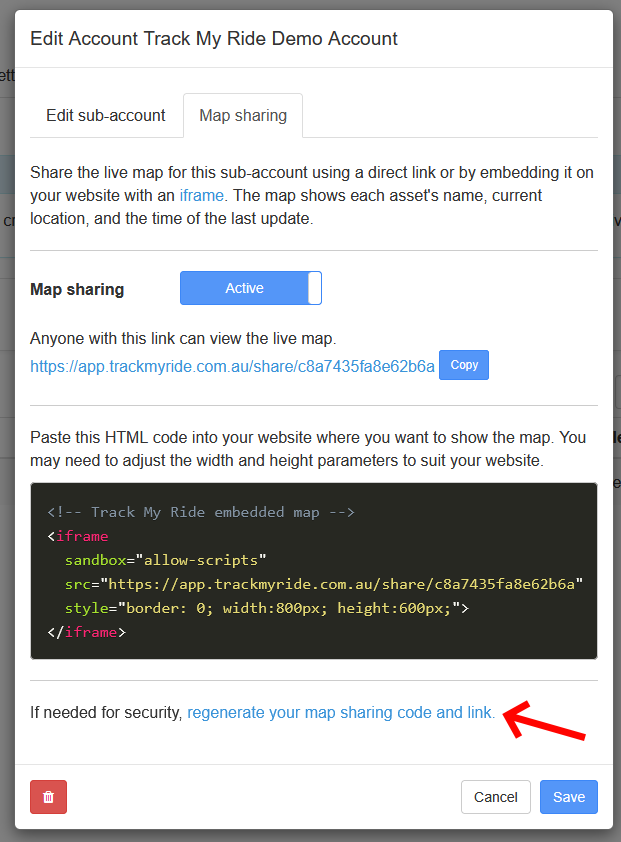
If you ever suspect someone has too much access, you can regenerate a new sharing code which invalidates the old one. The old code won't work anymore. If you embedded the map in a website, you'll need to update the iframe with the new code.
Important Information
The shared map shows only live and current locations. You will not share historical or tracking path data with viewers of the map sharing page.
As vehicles (with hardware trackers) and people (with phone location sharing) move, their positions update in real time on the shared map.
The map sharing respects the sub account's permissions and any exclusion zones you set.
You can turn map sharing off or on at any time without changing the sharing code.
If you generate a new sharing code for security, the old one stops working immediately. If embedded, you must update your website with the new code.
Technical Requirements
Recipients of the direct URL don't need any special software. They just need a web browser.
If you're embedding the map on your website via iframe, your website must allow iframe embedding and you should have access to edit your website's HTML so you can paste the code. If you're unsure, you might need a web developer or your website's technical person to help. Track My Ride support cannot edit your website's HTML for you.
For questions about map sharing, email support@trackmyride.com.au or submit a support ticket via https://support.trackmyride.com.au