
GPS isn't perfect
Have you ever looked at your tracked route on the map and noticed the line doesn't quite follow the road? Maybe it cuts through buildings, jumps across paddocks, or zigzags all over the place?
This happens because GPS isn't always perfectly accurate. Things like tall buildings, bad weather, trees, or even just how GPS works can make your tracker think you're a few metres away from where you actually are.
The result? Your route looks messy and doesn't match the roads you actually drove on.
Our Solution: Snap to Road
Snap to Road fixes this problem automatically. It takes your messy GPS line and "snaps" it onto the actual roads, so your route looks clean and accurate.
Think of it like this: imagine you drew a wobbly line near a road with a pen, then someone came along and neatly traced it onto the road itself. That's what Snap to Road does.
What you see with Snap to Road turned ON
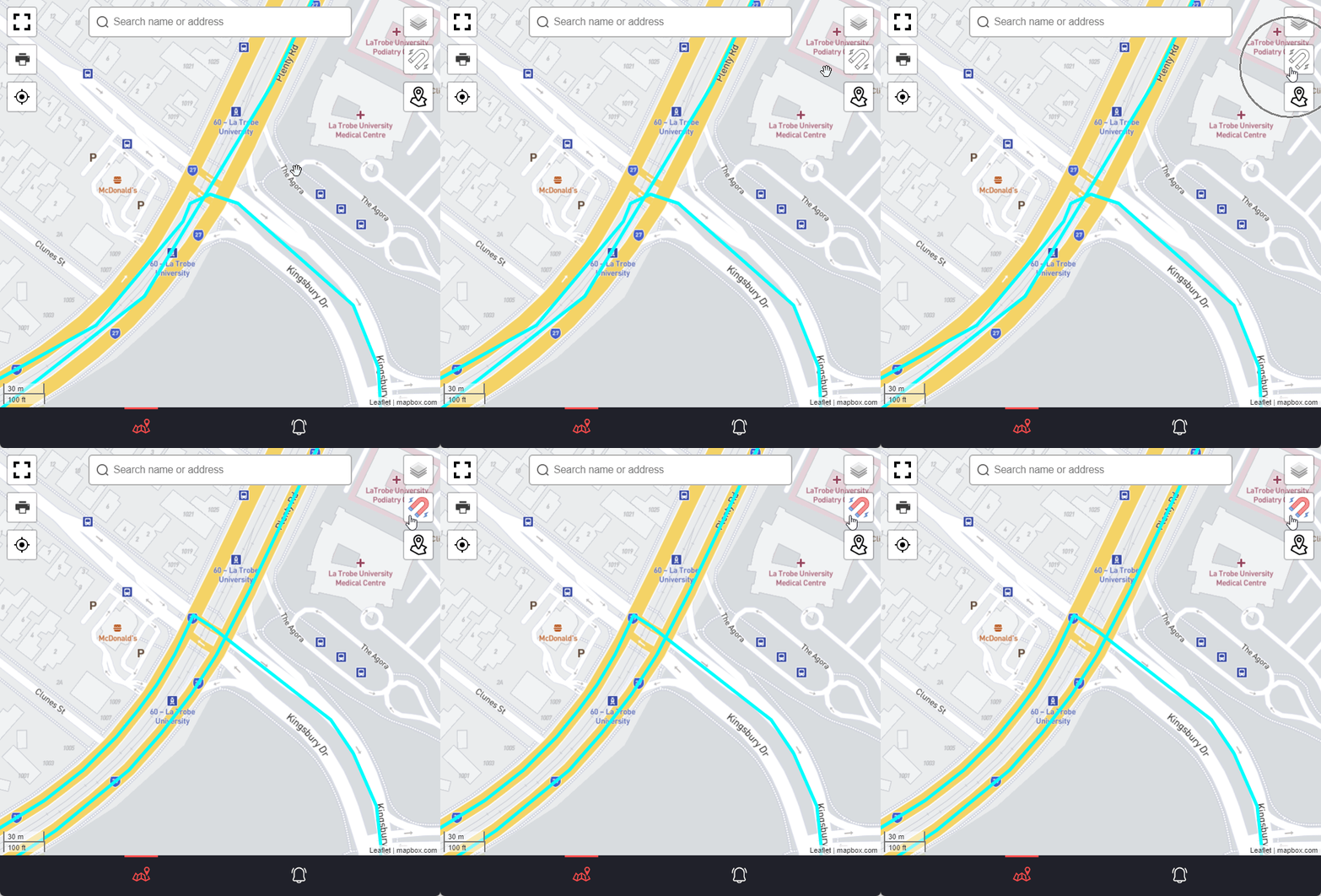
- Clean lines that follow the actual roads
- Routes that make sense
- Professional-looking tracks
- Easy to see exactly where you went
How does it work?
You don't need to understand the technical stuff, but here's what happens in simple terms:
- Your tracker records your location as you drive around
- Track My Ride compares your GPS points to a map of all the roads
- It figures out which road you were actually on at each point
- It moves your GPS points onto those roads to create a clean line
- You see a neat, accurate route on your map
What if there's no road? If you're driving off-road (farm, construction site, etc.), Snap to Road shows your original GPS track because there's no road to snap to.
When to use Snap to Road
Turn it ON when:
- You want clean, professional-looking routes
- You're sharing reports with customers or management
- GPS has been a bit wonky (tall buildings, bad weather)
- You want routes that clearly follow the roads
Turn it OFF when:
- You need to see the exact GPS data (for disputes or investigations)
- You're driving off-road and want to see the actual path
- You want to compare the original GPS with the cleaned-up version
How to turn it on or off
It's super easy - just one click:
- Open Track My Ride
- Look at the map
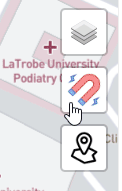
- Click the Magnet icon at the top
- Coloured in = Snap to Road is ON
- Not coloured in = Snap to Road is OFF
Important things to know
It's just a visual change: Snap to Road doesn't change your actual GPS data. The original tracking information is still there - you're just seeing it displayed differently.
It makes a best guess: Snap to Road does its best to figure out which road you were on, but it's not perfect. If you took a weird route or the GPS was really bad, it might guess wrong occasionally.
You can always check the original: Not sure if Snap to Road got it right? Just turn it off to see the original GPS track and compare.
It doesn't work everywhere: The road maps get updated regularly, but if you drove on a brand new road that's not on the map yet, Snap to Road won't know about it and will show your original GPS track.
Common questions
Q: Does this change my actual tracking data?
A: No. Your original GPS data is still there and unchanged. Snap to Road just changes how it's displayed on the map.
Q: Will this fix bad GPS coverage?
A: Sort of. It'll make messy GPS tracks look cleaner, but if your GPS coverage is really bad, you might have gaps in your tracking. Snap to Road can't add data that wasn't recorded.
Q: Should I leave it on all the time?
A: Most people leave it on because routes look cleaner. But you can turn it off any time if you need to see the raw GPS data.
Q: Does it use more data or battery?
A: No. It's just a display option that happens when you view the map. It doesn't affect your tracker at all.
Q: What if it snaps to the wrong road?
A: This can happen if GPS was really inaccurate or you took an unusual route. Just turn Snap to Road off to see the original GPS track instead.
Summary
Snap to Road is a simple feature that makes your GPS tracks look clean and professional by aligning them with the actual roads you drove on.
To use it: Click the magnet icon on the map. That's it.
When to use it: Most of the time, for cleaner-looking routes.
When not to use it: When you need to see the exact raw GPS data.
It's a handy tool that makes Track My Ride easier to read and more professional-looking when you're checking routes or showing reports to others.