
If you are not receiving notifications, use a test push to check whether a specific Track My Ride app installation can receive them. This separates phone registration and delivery problems from an alert rule that did not match an event.
A successful test confirms that Track My Ride accepted the request and contacted the push service. The phone must still be online, registered to the same account and permitted by iOS or Android to display notifications.
Before you start
Use the intended iPhone or Android phone to open the Track My Ride app and sign in to the account being tested. Allow notifications when prompted, and check that the phone has an internet connection.
Have access to Settings > Security for the same Track My Ride login. The Push notifications list belongs to that user account, so another administrator may see different registrations.
Testing delivery does not trigger an alert event and does not verify an alert's criteria, selected vehicles or people, schedule, frequency limit or notification recipients.
Steps
- On the phone, open the Track My Ride app and confirm that it is signed in. In the phone's system settings, allow notifications for Track My Ride.
- In Track My Ride, open Settings > Security.
- Under Push notifications, find the registration for the phone. Use its platform and shortened key to distinguish it from other app installations.
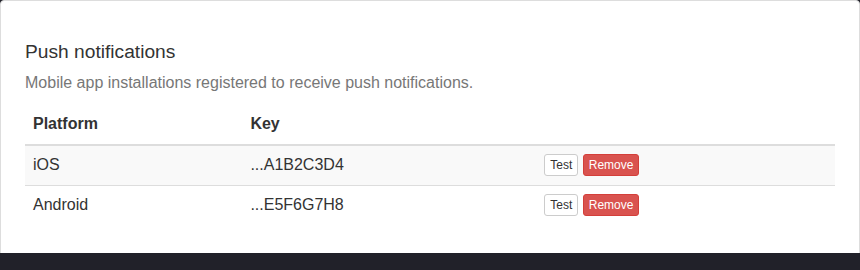
- Select Test beside that registration. The button shows Sending... while Track My Ride contacts the push service.
- Confirm that Track My Ride reports Test push sent.
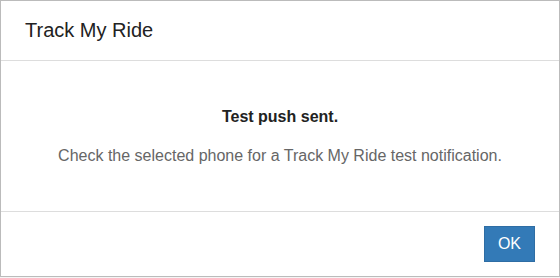
- Check the selected phone for a notification titled Track My Ride with the message Test notification. When the app is open, it may show an in-app test-notification confirmation instead of relying only on the system notification tray.
- Record which registration worked. Remove a retired or duplicate registration only after confirming that another entry reaches the active phone.
Do not repeatedly select Test. Push tests are limited to three attempts per minute and ten attempts per hour for each user.
Check an iPhone
Use these checks when Track My Ride reports Test push sent but the notification does not appear on an iPhone:
- Open Settings > Notifications > Track My Ride and turn on Allow Notifications. Enable at least one visible alert location, such as Lock Screen, Notification Centre or Banners, and turn on Sounds if an audible alert is required.
- Open Settings > Focus and check each Focus that may be active or scheduled. Turn the Focus off for a controlled test, or allow notifications from Track My Ride.
- Open Settings > Notifications > Scheduled Summary. Remove Track My Ride from the summary when its alerts must be delivered immediately rather than at a scheduled summary time.
- Check Notification Centre in case the alert arrived without appearing as a banner. Also check a paired Apple Watch because notifications may appear on the watch instead of the locked iPhone.
- Reopen Track My Ride if it was swiped away, confirm that the same account is still signed in, and send one later test. Restart the iPhone and install available Track My Ride and iOS updates if delivery still fails.
See Apple's Use notifications on your iPhone or iPad and Change notification settings on iPhone guides for current menu paths and Focus, summary, sound and alert-style options.
Check a Samsung Galaxy phone
Samsung Galaxy phones can restrict an app's background activity or place it in Sleeping apps or Deep sleeping apps. Menu names vary by phone model and One UI version, but these are the common checks:
- Open Settings > Notifications > App notifications > Track My Ride and allow notifications. Open the notification categories if shown and make sure the required category is enabled and not set to silent.
- Open Settings > Battery and device care > Battery > Background usage limits. Remove Track My Ride from Sleeping apps and Deep sleeping apps, then add it to Never auto sleeping apps when immediate alerts are required.
- Open Settings > Apps > Track My Ride > Battery and choose Unrestricted or Allow background activity, depending on the options shown. This can increase battery use.
- Turn off Power saving for a controlled test. Check Do not disturb, notification-category sound, mobile data, Wi-Fi and any data-saving or background-data restriction.
- Open Track My Ride and confirm that the intended account is signed in. Restart the phone and install available Track My Ride, Galaxy Store, Google Play system and phone software updates if delivery still fails.
See Samsung Australia's Galaxy phone not receiving notifications and Using Device Care guides for model-specific controls. If the labels differ, use Settings search for deep sleeping apps, background usage limits or Track My Ride notifications.
What happens next
Track My Ride sends both a data notification and a visible notification to the selected app registration. Delivery of either request is enough for the web page to report that the test was sent.
If the test reaches the phone but a real alert does not, the phone registration is working. Check the alert rule, its active schedule, selected vehicles or people, frequency controls and App Push Notification recipient. Use Reports > Alert History to confirm whether the underlying event matched.
Removing a push registration stops future notifications to that app installation. It does not sign the device out, remove other registrations or change alert rules.
Troubleshooting
- No push registrations are listed: Open the Track My Ride app on the phone, sign in to the same account and allow notifications. Close and reopen the app, then refresh Settings > Security.
- Test push sent, but nothing appears: Confirm that you tested the intended registration, then follow the iPhone or Samsung Galaxy checks above. For another Android brand, check its notification permission, Do Not Disturb mode, battery optimisation, sleeping-app controls, background-data access and internet connection.
- The notification appears only while the app is open: Review the phone's system notification and background-activity settings. Lock the phone and perform one later test after any changes, while staying within the rate limit.
- Unable to send test push: Confirm that the phone registration still exists and try again after checking connectivity. A temporary third-party push-service problem can also prevent sending.
- Rate limited appears: Stop testing and wait. The limit is three attempts per minute and ten attempts per hour for the signed-in user.
- Several registrations look identical: Test one entry at a time and note which phone receives it. Remove only confirmed stale entries; removing the wrong one stops delivery to that app installation.
- Tests work but alert pushes do not: Confirm that the alert is enabled, App Push Notification is selected, the intended recipient is configured and the event appears in Alert History. If no event appears, troubleshoot the alert rule rather than the phone.
- A removed phone still receives notifications: Refresh the list and check for another registration belonging to the same installation or another signed-in Track My Ride user on that phone.