
Track My Ride can raise an alert only after it receives the source event, such as an engine change or zone entry, and that event matches every enabled rule condition. If you are not receiving alert notifications, check the source event first, then the rule, and finally the delivery channel. Use the push-notification guide instead when a test notification also fails to reach the phone.
Before you start
Record the affected vehicle or person, the expected event time, the alert name and the notification channel. Use these details to compare each stage. Do not repeatedly trigger a safety-related hardware input while troubleshooting.
Check whether the delay is expected
Track My Ride normally waits until a vehicle has remained stationary for the configured end-of-journey period before confirming a stop. The default is five minutes. Brief stops at traffic lights, in traffic, at drive-throughs or during quick deliveries therefore remain part of the same journey.
After parking, a journey can remain in progress until the tracker confirms that it is still stationary. This is usually after five minutes; for the last journey of the day, confirmation may arrive with the tracker's next hourly heartbeat. Change the threshold under Account Settings > Journey Settings only when shorter stops should end journeys.
Steps
- Open Map and check for a device update near the expected event time. If there is no recent update, troubleshoot the tracker or Location Sharing before changing the alert.
- For a hardware event, open Reports > Raw GPS Data, enable Include metadata and inspect records around the expected time for the engine or input state. Vehicles > Events shows commands sent to trackers, not driving or input-event history.
- Open Alerts, edit the rule and confirm that it is enabled for the affected vehicle or person.
- Compare the event with every rule condition, including thresholds, zone selection, active days, active times and the account timezone.
- Check the selected notification destinations. Confirm email addresses, phone numbers, SMS credits and app notification permissions as applicable.
- Run Reports > Alert History for the event period.
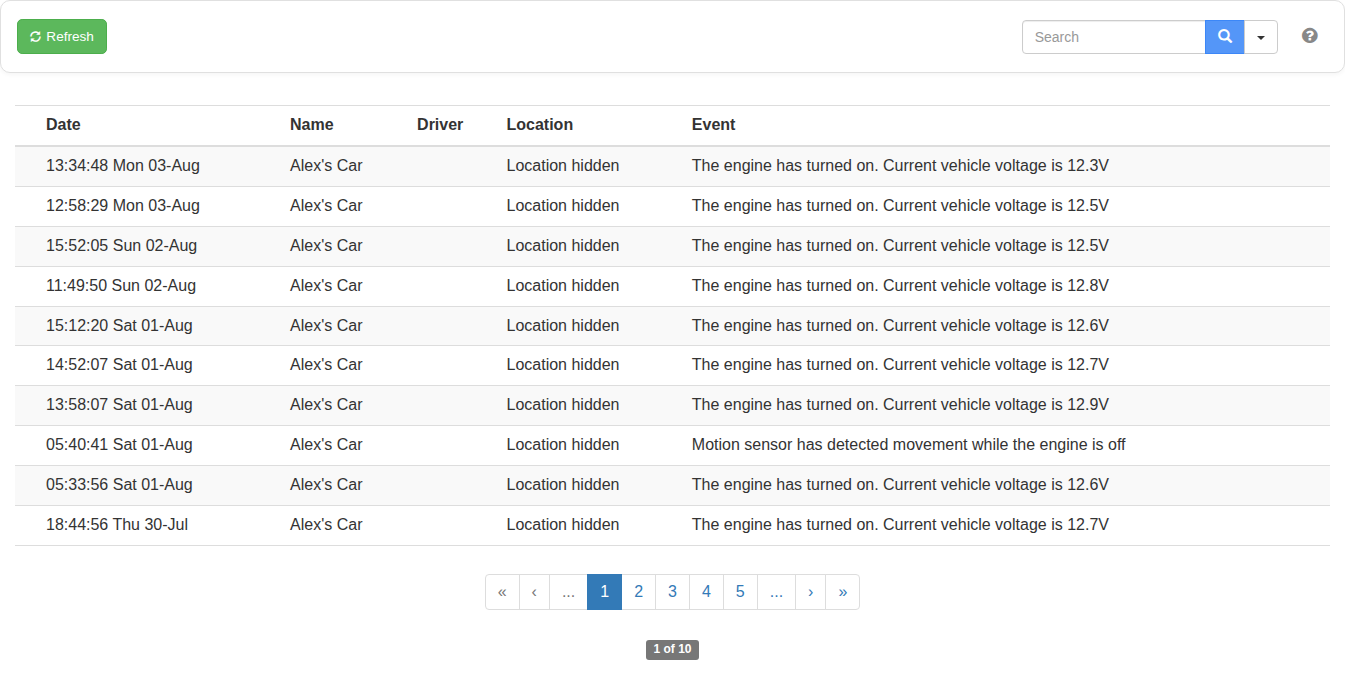
- If the event appears in Alert History, the rule matched and the remaining issue is notification delivery. If it does not appear, recheck the source event and rule conditions.
- Correct one setting at a time, save it and perform a controlled test. Confirm the test in Alert History and in the intended notification channel.
Check for no GPS signal
A hardware tracker can connect to the mobile network and upload a record while it has no usable Global Positioning System (GPS) signal. Without a GPS position, Track My Ride may be unable to create the expected journey or evaluate location-based conditions such as speed, zone entry or zone exit.
- Open Reports > Raw GPS Data.
- Select the affected hardware tracker and a short period covering the expected journey or alert.
- Select Run Report and check the Accuracy value for the rows in that period.
- If the report shows 0 satellites across the affected period, the tracker was not using any satellites to calculate a position for those records. Compare nearby rows to find when satellite reception was last available and when it returned.
- Open Options, enable Include metadata, rerun the report and expand the affected rows. Compare GPS Status, engine or ignition state and the recorded and received times where available.
Rows showing 0 satellites confirm a lack of GPS reception for those records. They do not by themselves prove that the tracker lost mobile coverage: the presence of the rows means Track My Ride received that data, although it may have arrived later. If there are no rows for the period, treat it as a tracker reporting or mobile-connectivity gap instead; there is no satellite value available to assess.
The Accuracy field is different for Location Sharing phones, where it is shown in metres, and some tracker models may show N/A instead of a satellite count. Do not interpret 0 m or N/A as zero satellites.
Repeated zero-satellite periods commonly indicate that the tracker has a poor view of the sky, such as under metal, inside a covered building or in an unsuitable installation position. Move the vehicle into an open area for a controlled test. If reception returns outdoors but repeatedly disappears in normal use, have the tracker position and antenna orientation checked according to its installation guide.
Diagnose incorrect engine alerts
Voltage-based engine detection commonly uses 13.2 V as its default threshold. A battery or trickle charger can raise a parked vehicle to about 14 V and cause an incorrect engine-on event. Conversely, a smart alternator can reduce voltage below the threshold while driving and cause an incorrect engine-off event.
Open the vehicle detail and compare its recent voltage graph with the alert time. For a hardwired 12 V installation, readings below 9 V usually indicate a loose or intermittent connection rather than a genuinely discharged battery. Ask a qualified installer to inspect the connections. If the wiring is sound but voltage is not reliable for that vehicle, configure motion detection or a suitable ignition input instead; adjust a voltage threshold only when you understand the vehicle's charging behaviour.
What happens next
A matched event appears in Alert History even when an email, SMS or push notification is delayed. This helps you determine whether the issue is with the alert rule or notification delivery.
Troubleshooting
- A short stop is missing: Compare its duration with the configured end-of-journey period. This is journey processing, not a notification failure.
- An engine alert appears while parked: Check for a charger and compare voltage with the configured engine-on threshold.
- An engine-off alert appears while driving: Check for a smart alternator, intermittent wiring or a threshold that does not suit the vehicle.
- Raw GPS shows 0 satellites: The hardware tracker had no GPS position for those records. Test it in an open area and investigate tracker placement if the pattern repeats.
- Raw GPS has no rows for the period: Check tracker power and mobile connectivity. A missing row has no satellite count to inspect.
- The source event is absent: Troubleshoot the tracker or Location Sharing first.
- The source event exists and all conditions match but Alert History remains empty: Contact Support with the alert name, affected vehicle or person, and event times.