
Rosters and reservations can supply an automatic Business or Private classification to a journey. A roster matches through the person recorded as the journey's driver. A reservation matches the vehicle, whether or not a person was selected on the reservation.
By default, Journeys default to is Private. With Business rosters or reservations covering work hours, only matching journeys become Business and unmatched journeys remain Private. The inverse model is optional: set the default to Business and use Private rosters or reservations for likely non-work hours, such as evenings or weekends. Then matching journeys become Private and unmatched journeys remain Business.
Use this guide to understand and troubleshoot the matching rules. For a complete setup with common work-hour examples, zones and Tax Logbook checks, follow Set up automatic business and private journey classification.
Before you start
Confirm the account timezone and identify one completed journey whose driver, vehicle, start time and stop time you know. You need access to Settings > Application Settings, the relevant roster or reservation, and Reports > Journeys to trace the result end to end.
Each roster or reservation has a Classification value:
Business
Supplies Business to the journey.
Private
Supplies Private to the journey.
Default classification (Account settings)
Uses the account's Journeys default to value.
Business via schedule
Supplies Business only when the tested journey time falls in a green cell in the record's Schedule grid.
Private via schedule
Supplies Private only when the tested journey time falls in a green cell in the record's Schedule grid.
Repeating controls which dates and daily times create the roster or reservation. The classification Schedule is a separate whole-hour grid that controls when a scheduled Business or Private value is supplied. Outside its green cells, that record supplies no classification, so the next applicable source or account default can determine the result.
Steps
1. Identify what the record matches
Use a roster when the person's working period controls classification. Before relying on it, open Vehicles > Vehicles, select the vehicle's current driver control and allocate the rostered person as its driver. That allocation must be in effect when the journey occurs, and the person must appear in the journey's Driver field. The same roster can then match that person across different vehicles, but it does not match a journey with no driver or a different driver.
Use a reservation when the vehicle's booked period controls classification. The reservation belongs to a vehicle, so it can match without a person. Selecting a person records who the booking is for but does not change the vehicle-based match.
Record: Roster
Match key: Journey driver and roster person
Common reason it does not match: The driver was not allocated to the vehicle for that journey.
Record: Reservation
Match key: Journey vehicle and reserved vehicle
Common reason it does not match: The booking belongs to another vehicle or does not cover the matched endpoint.
2. Check which journey time is tested
Under Settings > Application Settings > Journey Settings, Roster & reservation matching controls which endpoint is compared with the record period.
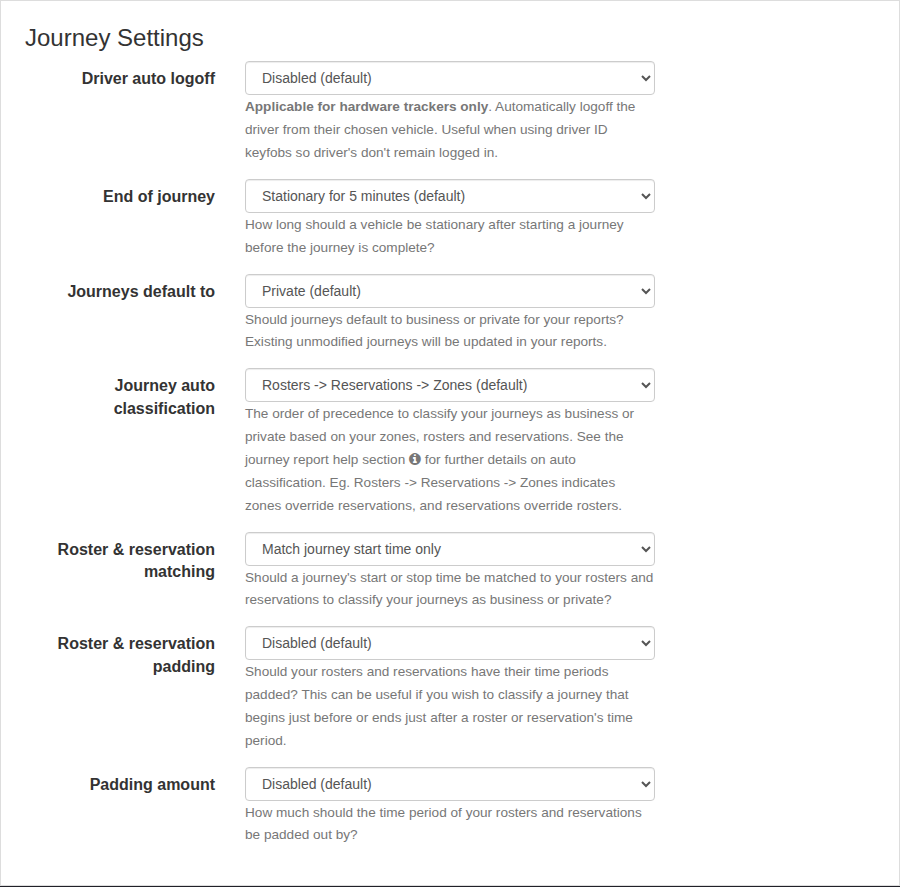
Either journey start or stop time must be within
At least one endpoint is inside the period.
Both journey start & stop time must be within
The whole journey is inside the period.
Match journey start time only
Departure is inside the period.
Match journey stop time only
Arrival is inside the period.
For a 08:00-17:00 Business roster, a journey from 16:50-17:20 matches start time only and either start or stop, but not stop time only or both start and stop.
3. Account for padding
Padding extends the period used for matching without changing the roster or reservation shown on its calendar. Start padding extends earlier, end padding extends later, and padding both extends both edges.
For example, 15 minutes of start and end padding changes an 08:00-17:00 matching window to 07:45-17:15. Use the smallest allowance that reflects normal operations. Excessive padding can classify unrelated travel.
4. Resolve overlapping sources
Journey auto classification lists enabled sources from lower to higher priority. The last matching source in the displayed order wins. For example, Rosters → Reservations → Zones means Zones overrides Reservations, and Reservations overrides Rosters.
The complete order is:
- A manual Business or Private value saved on the journey.
- The highest-priority matching roster, reservation or zone.
- Journeys default to when no source matches.
This fallback makes two complementary strategies possible:
Baseline: Private (default)
Matching records: Business work-hour rosters or reservations
Outcome: Only journeys matching known business hours become Business.
Baseline: Business (optional)
Matching records: Private non-work rosters or reservations
Outcome: Journeys matching evenings, late nights or weekends become Private; unmatched journeys remain Business.
Choose one baseline deliberately. Avoid overlapping broad Business and Private periods until you have confirmed which source has precedence.
The newest record does not automatically win. When two rosters or reservations overlap, inspect their classifications and the selected source order rather than relying on creation time.
5. Trace a result in Journeys
- Open Reports > Journeys and run a short period containing the known journey.
- Record its vehicle, driver, start, stop, classification and Auto Notes or displayed automatic source.
- Open the matching roster or reservation and compare its person or vehicle, classification, period and recurrence.
- Apply the configured endpoint rule and padding to the journey times.
- Check for a matching higher-priority reservation, roster or zone.
- Check whether the journey was manually classified.
Change a journey manually only when it is a genuine exception. Fix the roster, reservation, driver allocation or account rule when the same unexpected result affects multiple journeys.
What happens next
Unmodified journeys are evaluated using the account rules and matching records. Journeys and Tax Logbook use the resulting Business or Private values. After changing a rule, rerun a short known period and verify both matching and non-matching journeys before relying on aggregate percentages.
Changes to work schedules, vehicle allocations and classification policy should trigger another review. Keep the account timezone, source order, endpoint rule and padding with the organisation's approved reporting procedure.
Troubleshooting
- A roster does not affect the journey: Confirm the roster person is recorded as the journey's driver, then check the period, recurrence, endpoint rule and padding.
- A reservation does not affect the journey: Confirm it uses the same vehicle and that the tested journey endpoint falls within the effective booking period.
- A roster and reservation both match: Check their classifications and read Journey auto classification from left to right; the later matching source wins.
- A zone produces the result: Move Zones lower in priority only if that matches the organisation's policy, or change the zone's Logbook value or boundary.
- The journey always keeps its old result: Check for a saved manual classification, which takes precedence over automatic sources.
- Too many journeys match: Reduce padding or choose a stricter endpoint rule. Check broad or overlapping records.
- A scheduled value does not apply: The tested endpoint must be inside both the record period and a selected schedule cell.
- Tax Logbook totals are unexpected: Inspect the underlying Journeys rows for the same vehicle and period before rerunning the report.