
A CSV (comma-separated values) import lets you update supported details for many existing people at once. Use it when editing each person separately would take too long. It does not create new people.
Before you start
You need permission to edit records and a desktop browser. Download a new people data file from the current People page each time you prepare an import. The unique_id value matches each row to an existing person; do not change or remove it.
The import overwrites each field included in the uploaded file, including with an empty value. Delete any person rows you do not want to update and delete any optional columns you do not want the import to change. Keep an unchanged backup of the downloaded file so you can compare or restore values if needed.
People data can contain personal information. Store the working file securely, share it only with authorised users and delete local copies when your organisation no longer needs them.
first_name, last_name
The person's displayed name.
phone_number
The person's contact number.
company_id
Your organisation's unique identifier for the person. Each person must have a different value.
hire_date
The person's employment start date.
department
The team or department recorded against the person.
driver_id
A supported 12- or 16-character key fob ID, or an RFID card number.
odometer, timezone, daylight_saving
Mobile Location Sharing vehicle settings. These columns appear only when applicable. Timezone values are offsets in minutes; automatic daylight saving is available only for Australian timezones.
Steps
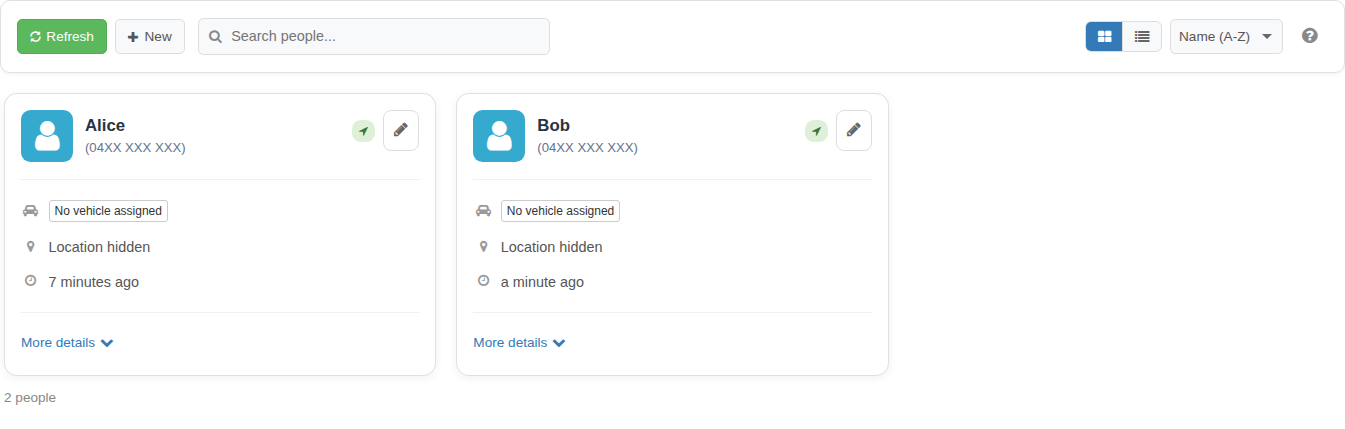
- Open People and select Import.
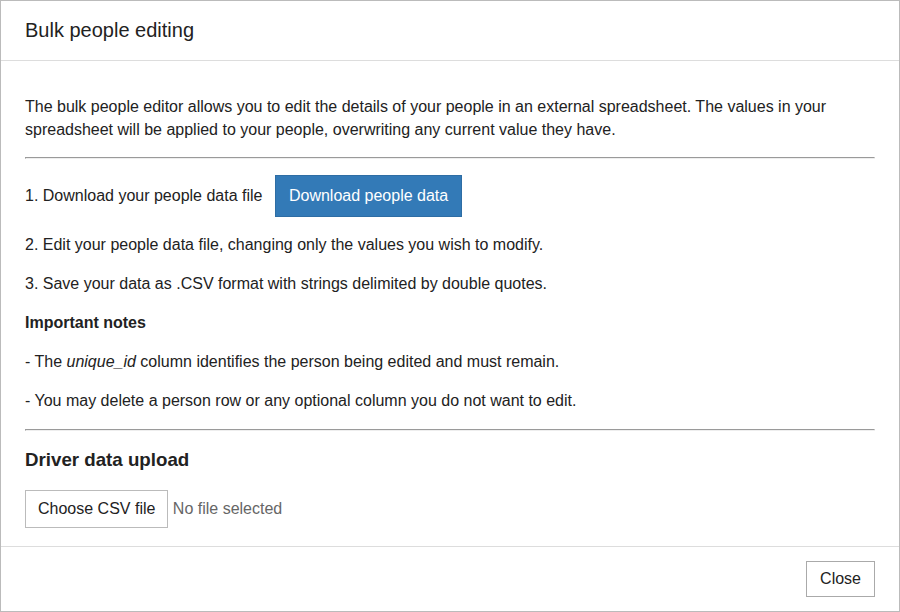
- Select Download people data and save the CSV file.
- Make an unchanged backup, then open a working copy in a spreadsheet application.
- Delete rows for people you do not intend to update. Keep each remaining
unique_idunchanged. - Delete optional columns you do not intend to update, then edit only the supported values that should change. Keep the header row and the
unique_idcolumn. - If the file contains
odometer, consider removing that column unless you intend to set those values. A person's mobile-tracking odometer may have changed since the file was downloaded. - Save the working file as a comma-separated CSV using UTF-8, which keeps names and symbols readable. In Microsoft Excel, choose CSV UTF-8 (Comma delimited). In LibreOffice, choose UTF-8 as the character set and a comma as the field separator. Keep text values inside double quotation marks when that option is offered. Do not save the upload as XLSX.
- Return to the Bulk people editing dialog, choose the CSV file and select Upload. Uploading applies valid changes immediately.
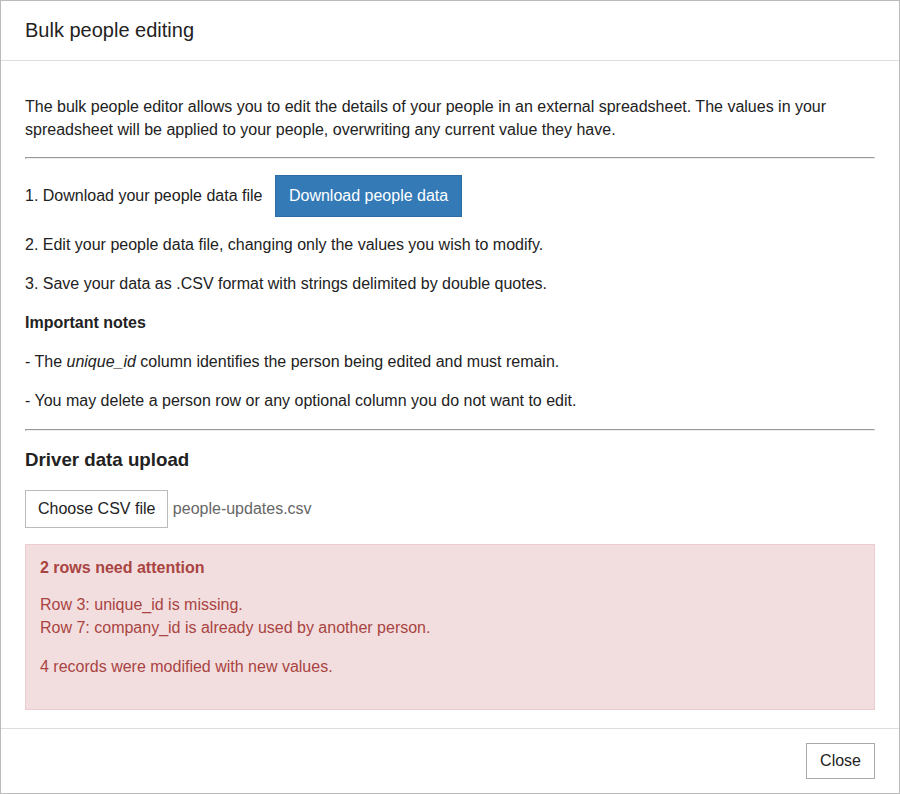
- Review the result for skipped rows or invalid values. Correct and upload only the affected rows again; valid rows from the first upload may already have changed.
- Refresh People and inspect several updated records, including the first and last rows you changed.
What happens next
Track My Ride updates each authorised person matched by unique_id. Changing a person's first or last name also updates the name of their associated Mobile Location Sharing vehicle when one exists.
The result reports how many records were modified. A record may be processed but not counted as modified when its uploaded values are unchanged.
Troubleshooting
- The Import control is missing: Confirm that you are using the top-level account and have permission to edit records.
- The file cannot be processed: Download a fresh people data file and keep its header row,
unique_idcolumn and CSV format unchanged. - A person is skipped: Check that the
unique_idstill matches the downloaded value and that your account can edit that person. - A company ID is rejected: Give each person a unique
company_id, then upload that row again. - A Driver ID is rejected: Enter the complete supported key fob ID or RFID card number shown on the credential.
- Names or symbols display incorrectly: Save the file again as CSV UTF-8 (Comma delimited) and upload it again.
- Values appear under the wrong columns: Confirm that the file uses commas rather than semicolons, and that no column heading was renamed or moved.
- An unintended field changed: Use the unchanged backup to identify the previous value, correct that person's row and upload it again. Remove optional columns from future uploads when they should remain untouched.