
A CSV (comma-separated values) import lets you update supported details for many existing vehicles at once. Use it when editing each vehicle separately would take too long.
Before you start
You need permission to edit records, a desktop browser and at least five vehicles in the account. Download a new template from the current Vehicles page each time you prepare an import. The identifiers in that file match each row to an existing vehicle; changing them can update the wrong record or cause the upload to fail.
Keep an unchanged copy of the downloaded file so you can compare or restore values if needed. Do not rename columns or save the file in a spreadsheet format such as XLSX.
Steps
- Open Vehicles and select Import.
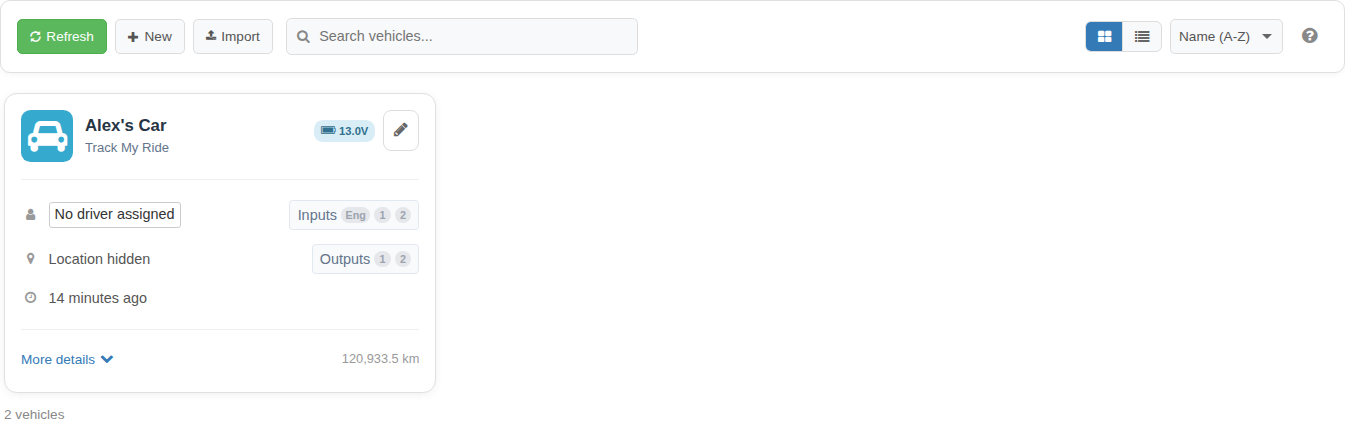
- Download the vehicle template.
- Save an unchanged backup, then open the working copy in a spreadsheet application.
- Update only the supported columns and rows you intend to change. Keep every vehicle identifier and column heading unchanged.
- Save the working file as a comma-separated CSV using UTF-8, which keeps names and symbols readable. In Microsoft Excel, choose CSV UTF-8 (Comma delimited). In LibreOffice, choose UTF-8 as the character set and a comma as the field separator.
- Return to Import and select the CSV file. Check the file once more before you select Upload because uploading applies its valid changes immediately.
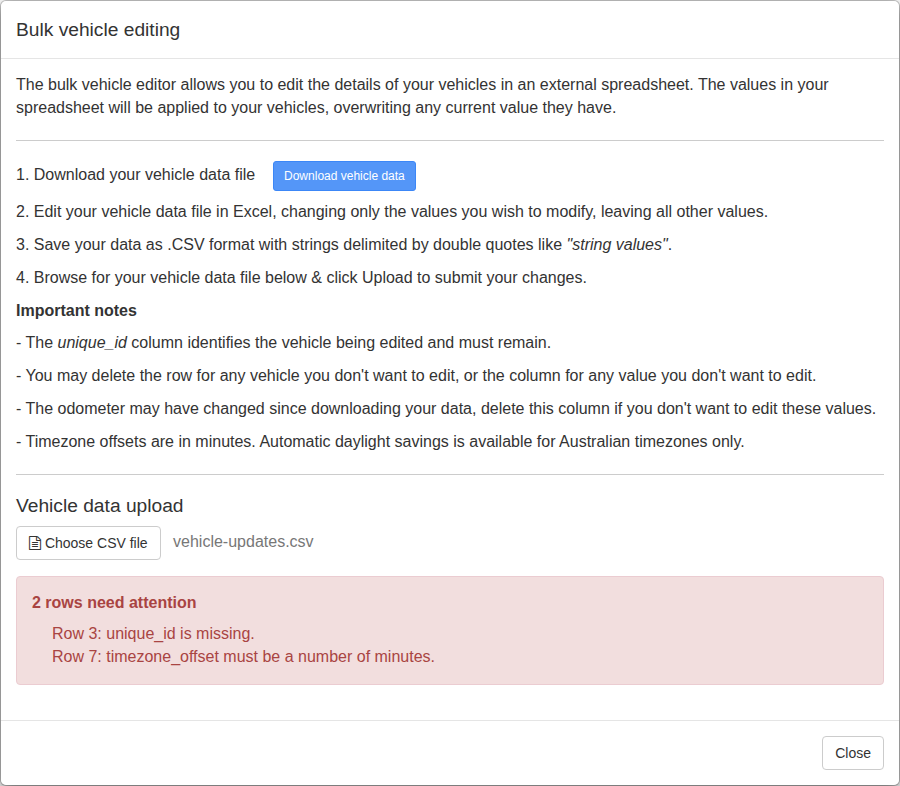
- Review the upload result. If it reports errors, correct those rows in the CSV before uploading the file again.
- Refresh Vehicles and inspect several updated records, including the first and last rows you changed.
What happens next
Valid changes are applied to the vehicles matched by their identifiers. The spot check confirms that the intended records and fields changed before your team relies on the imported details.
Troubleshooting
- Names or symbols display incorrectly: Save the file again as CSV UTF-8 (Comma delimited) and upload it again.
- Values appear under the wrong columns: Confirm that the file uses commas rather than semicolons, and that no column heading was renamed or moved.
- The columns no longer match the import screen: Download a new template and copy only your supported changes into it.
- The upload reports a row error: Find that row in the CSV and check for a changed identifier, missing required value or altered column structure.