
Update the account's credit card when the current card is expiring, has been replaced or should no longer be used for future Track My Ride charges. Track My Ride opens a secure hosted billing portal to collect and store the payment details.
Before you start
You must sign in through the top-level account, which is the main account with full administrative access. Use the web application on a trusted desktop browser and have the replacement card available.
Only enter card details in the secure billing portal opened from Track My Ride. Never send a full card number, expiry date or card verification value (CVV) to Support by email, chat or a support ticket.
Updating the card changes the payment method used for future eligible charges. It does not by itself pay an invoice that is already outstanding.
Steps
- Sign in to the Track My Ride web application with the top-level account.
- Open Settings, then select Account.
- Find the PAYMENT METHOD section.

- Select Manage payment info. Track My Ride opens the secure hosted billing portal.
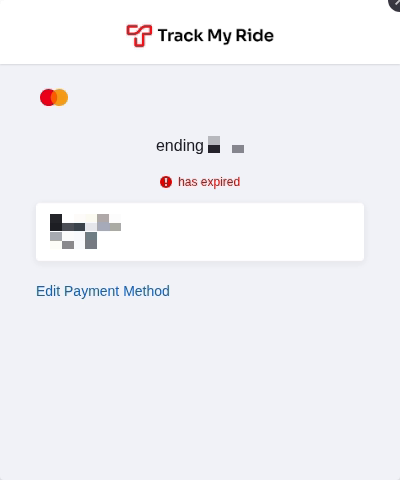
- In the payment-method area, choose the action to add or replace a payment method. The exact wording can vary as the billing provider updates its portal.
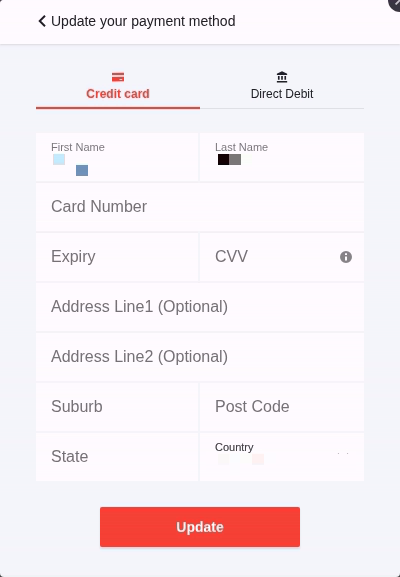
- Enter the cardholder name, card number, expiry date, CVV and any billing-address details requested by the secure form.
- Check that the cardholder and billing details are correct, then select the portal's save or update action once.
- Wait for the portal to confirm the update. Complete any verification requested by the card issuer, such as a one-time code or banking-app approval.
- Close the secure billing portal and return to Settings > Account.
- Refresh the Account page if needed. Confirm that the Payment Method summary reports the updated details or displays Payment details updated.
Do not include card details in screenshots or notes. Track My Ride may show only a card type, masked digits or expiry summary after the billing provider verifies the update.
What happens next
The updated card becomes the payment method for future eligible charges after the billing provider accepts it. If the account is in a trial, the confirmation may also show the plan and date on which billing will begin.
If the Account page shows Payment Due, use Pay outstanding invoices separately and confirm the payment result. Updating the stored card does not guarantee that an existing unpaid invoice is retried automatically.
Keep any payment confirmation according to your organisation's record-keeping requirements. Share only the invoice number, date, amount and displayed error with Support; never share the full card details.
Troubleshooting
- Manage payment info is missing: Confirm that you are signed in through the top-level account and are using the web application. Billing controls may not be available inside the mobile app.
- The secure billing portal does not open: Allow required billing-site content and pop-ups, disable a restrictive browser extension for the page, or retry in a current browser on a trusted device.
- The card is declined: Check the entered details and available funds, then follow the card issuer's message. Contact the issuer if it continues; do not repeatedly submit the same card.
- Verification does not complete: Return to the secure form and retry the issuer's verification once. Check that the issuer has the correct mobile number and that browser pop-ups are allowed.
- The old payment summary remains: Refresh Settings > Account and reopen Manage payment info to check whether the portal saved the change before entering the card again.
- An invoice is still outstanding: Open billing history and use the outstanding-invoice payment action. Confirm the result before trying again to avoid a duplicate payment.
- You are unsure whether the update succeeded: Contact Support with the account number and the time of the attempt. Do not send the card number, expiry date or CVV.