
Reserve fleet vehicles quickly and easily through our self-service reservation portal. This guide walks you through everything you need to know to view availability, make reservations, and manage your booking requests.
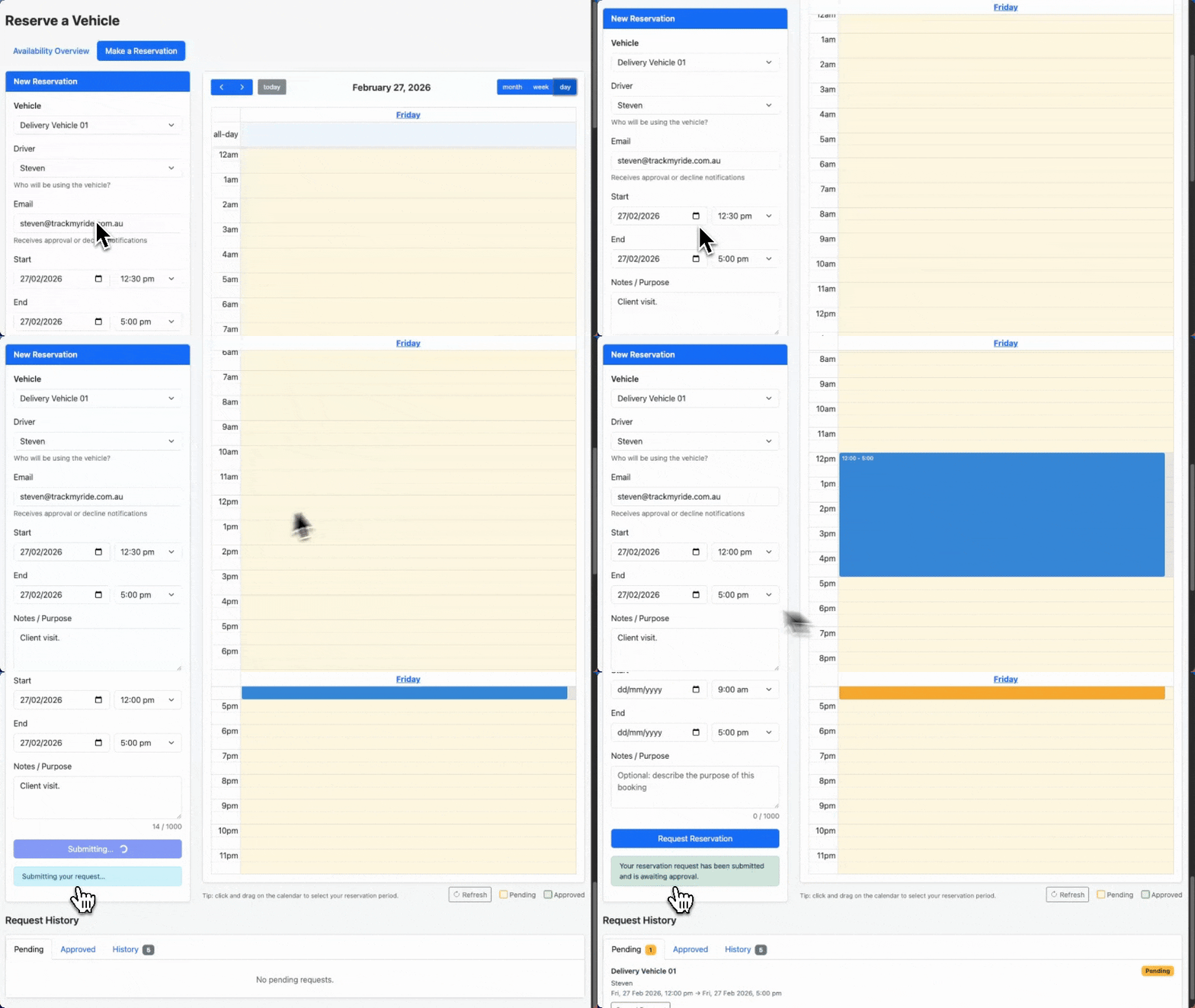
Table of Contents
- Getting Started
- Accessing the Portal
- Viewing Vehicle Availability
- Making a Reservation
- Managing Your Requests
- Cancelling a Reservation
- Understanding Reservation Status
- Tips for Successful Bookings
- Frequently Asked Questions
- Troubleshooting
Getting Started
The Vehicle Reservation Portal allows you to:
- View availability across all vehicles in your organisation's fleet
- Request reservations for specific vehicles and time slots
- Track your requests from submission through approval
- Cancel pending requests if your plans change
- Receive notifications when your requests are approved or declined
Your fleet administrator provides you with a unique portal link. This link is specific to your organisation and may require an access code for security.
Accessing the Portal
Step 1: Open Your Portal Link
Click the portal link provided by your administrator. The link looks like:
https://app.trackmyride.com.au/reservation/abc123...Step 2: Enter Your Access Code (if required)
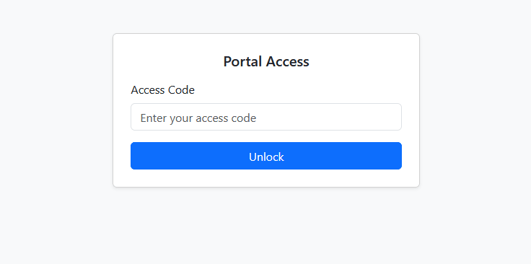
If your portal is password-protected, you'll see the Portal Access screen:
- Enter the access code provided by your administrator
- Click Unlock
Note: After several incorrect attempts, you may be temporarily locked out. Wait a few minutes and try again, or contact your administrator.
Step 3: Choose What You'd Like to Do
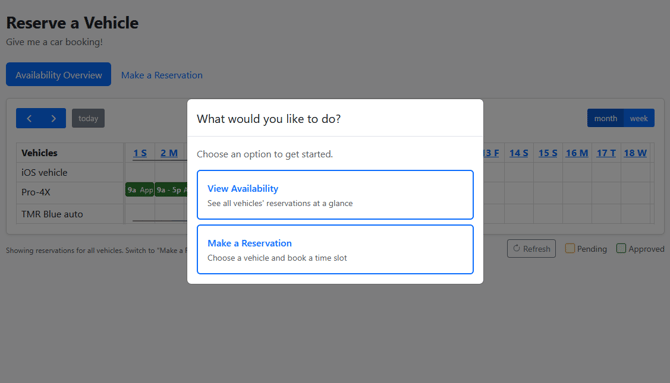
If multiple vehicles are available, you'll see two options:
- View Availability — See all vehicles' reservations at a glance
- Make a Reservation — Choose a vehicle and book a time slot
Select the option that matches what you need.
Viewing Vehicle Availability
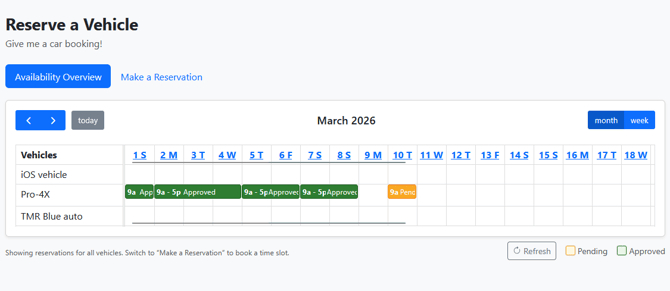
The Availability Overview tab shows a timeline of all vehicles and their reservations.
Understanding the Calendar View
- Each row represents a different vehicle
- Amber bars indicate pending reservations (awaiting approval)
- Green bars indicate approved reservations
Viewing Reservation Details
Click on any reservation bar to see:
- Vehicle name
- Driver name
- Start and end date/time
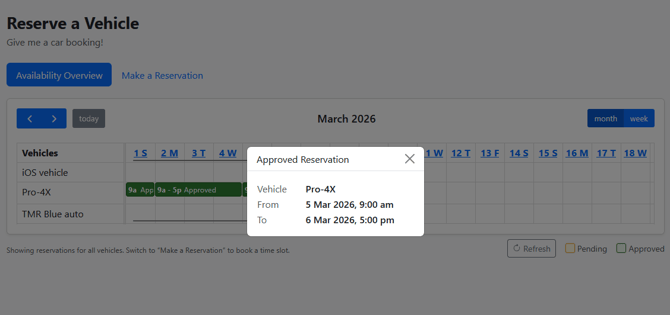
Refreshing the Calendar
Click the Refresh button below the calendar to load the latest availability data.
Making a Reservation
Step 1: Go to "Make a Reservation"
Click the Make a Reservation tab to access the booking form and calendar.
Step 2: Select a Vehicle
Choose the vehicle you want to reserve from the Vehicle dropdown. If there are many vehicles, you can type to search.
Step 3: Select a Driver
Choose who will be using the vehicle from the Driver dropdown. This field is required.
Step 4: Enter Your Email (Optional)
Provide your email address to receive notifications when your request is approved or declined.
Step 5: Choose Your Dates and Times
You have two ways to select your reservation period:
Option A: Use the Calendar (Recommended)
- Click and drag on the calendar to select your desired time range
- The start and end fields will automatically fill in
- This is the fastest way to book
Option B: Manual Entry
- Select the Start date and time
- Select the End date and time
- Times are available in 30-minute increments (e.g., 9:00 am, 9:30 am, 10:00 am)
Tip: Clicking a single day on the calendar defaults to 9:00 am – 5:00 pm.
Step 6: Add Notes (Optional)
Use the Notes / Purpose field to describe why you need the vehicle. This helps administrators approve your request. You can enter up to 1,000 characters.
Step 7: Submit Your Request
Click Request Reservation to submit. You'll see:
- A success message if your request was submitted
- An error message if there's a problem (see Troubleshooting below)
Your request is now pending approval by the fleet administrator.
Managing Your Requests
Viewing Your Request History
Below the booking form, you'll find the Request History panel for the currently selected vehicle with three tabs:
| Tab | Shows |
|---|---|
| Pending | Requests awaiting administrator approval |
| Approved | Reservations that have been approved |
| History | Past requests (declined or cancelled) |
Each tab displays a count badge showing the number of requests.
Request Details
Each request shows:
- Vehicle name
- Status badge (Pending, Approved, Declined, or Cancelled)
- Driver name
- Date and time range
- Notes (if provided)
Automatic Status Updates
The portal automatically checks for status updates every few seconds. You don't need to refresh the page — approved or declined requests will appear automatically. You will also receive an email (if supplied) when your reservation is approved or declined.
Cancelling a Reservation
You can cancel your own pending requests before they're approved. It must be done from the same browser the request was originally made from.
How to Cancel
- Go to the Pending tab in Request History
- Find the request you want to cancel
- Click the Cancel button
- Confirm by clicking Yes, Cancel in the popup
Important: You can only cancel requests that you submitted from the same browser. Once a request is approved or declined, it cannot be cancelled.
Understanding Reservation Status
| Status | Meaning |
|---|---|
| Pending | Your request has been submitted and is awaiting administrator review |
| Approved | Your reservation is confirmed — the vehicle is booked for your selected time |
| Declined | Your request was not approved — contact your administrator for details |
| Cancelled | You cancelled this request before it was reviewed |
Status Colours
- 🟡 Amber — Pending
- 🟢 Green — Approved
- 🔴 Red — Declined
- ⚫ Grey — Cancelled
Tips for Successful Bookings
Plan Ahead
Submit your requests early to give administrators time to review them.
Check Availability First
Use the Availability Overview to see which time slots are free before making a request.
Avoid Conflicts
The portal prevents double-bookings. If your selected time overlaps with an existing reservation, you'll see an error. Choose a different time slot.
Be Specific in Notes
Include the purpose of your trip and any special requirements in the Notes field. This helps administrators make informed decisions.
Provide Your Email
Enter your email address to receive instant notifications when your request is approved or declined.
Keep Your Browser Open
If you want to track your request status in real-time, keep the portal tab open. Status updates appear automatically.
Frequently Asked Questions
How long until my request is approved?
Approval times depend on your organisation's review process. Contact your fleet administrator for expected turnaround times.
Can I modify an existing request?
No — to change a reservation, cancel the pending request and submit a new one with the correct details.
Why can't I see the cancel button?
The cancel button only appears for:
- Pending requests (not approved or declined)
- Requests submitted from your current browser
What does "Time window overlaps an existing reservation" mean?
Another reservation already exists for that vehicle during part or all of your requested time. Choose a different time slot or vehicle.
What does "Portal Unavailable" mean?
This may indicate:
- The administrator has temporarily disabled the portal
- The booking window has closed
- Your portal link has expired
Contact your administrator for assistance.
What if I forget my access code?
Contact your fleet administrator to receive the access code again.
Does the portal work on mobile?
Yes — the portal is fully responsive and works on phones, tablets, and desktop computers.
Can I book multiple vehicles at once?
Each reservation is for one vehicle. To book multiple vehicles, submit separate requests for each.
How far in advance can I book?
Your administrator may set a booking window (e.g., "bookings accepted until December 31"). If configured, you'll see a banner showing the valid booking period.
Troubleshooting Common Issues
| Issue | Solution |
|---|---|
| "Start must be before End" | Ensure your start date/time is earlier than the end date/time |
| "Please select a driver" | Choose a driver from the dropdown before submitting |
| "Time window overlaps an existing reservation" | Choose a different time slot — this one is already booked |
| "Access code incorrect" | Double-check the code provided by your administrator |
| "Too many attempts. Please wait and try again" | Wait 15 minutes before trying to enter the access code again |
| "Your session has expired" | Re-enter your access code to continue |
| Page won't load | Check your internet connection and refresh the page |
Need Help?
If you experience issues not covered in this guide, contact your fleet administrator for support or reach out to support@trackmyride.com.au
Related Documentation
- Vehicle Reservation Portal Admin Setup Guide — Guide for administrators to setup the reservation portal.