
This guide explains how fleet administrators can enable, configure, and manage the Vehicle Reservation Portal. The portal allows your team members, contractors, or external users to request vehicle reservations through a secure public booking page.
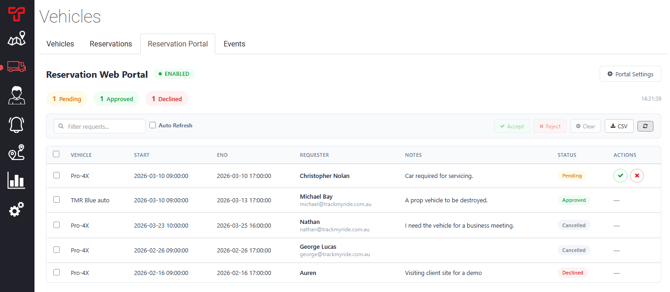
Table of Contents
- Overview
- Accessing the Portal Manager
- Enabling the Portal
- Configuring Portal Settings
- Sharing the Portal Link
- Managing Reservation Requests
- Bulk Actions
- Regenerating the Portal Link
- Disabling the Portal
- Best Practices
- Troubleshooting
Overview
The Vehicle Reservation Portal provides:
- A public booking page where users can view vehicle availability and submit reservation requests
- An admin dashboard for reviewing, approving, or declining requests
- Configurable access controls including password protection and validity windows
- Audit logging for all portal activity
How It Works
- You enable and configure the portal in the Track My Ride admin dashboard
- You share the unique portal link with your users
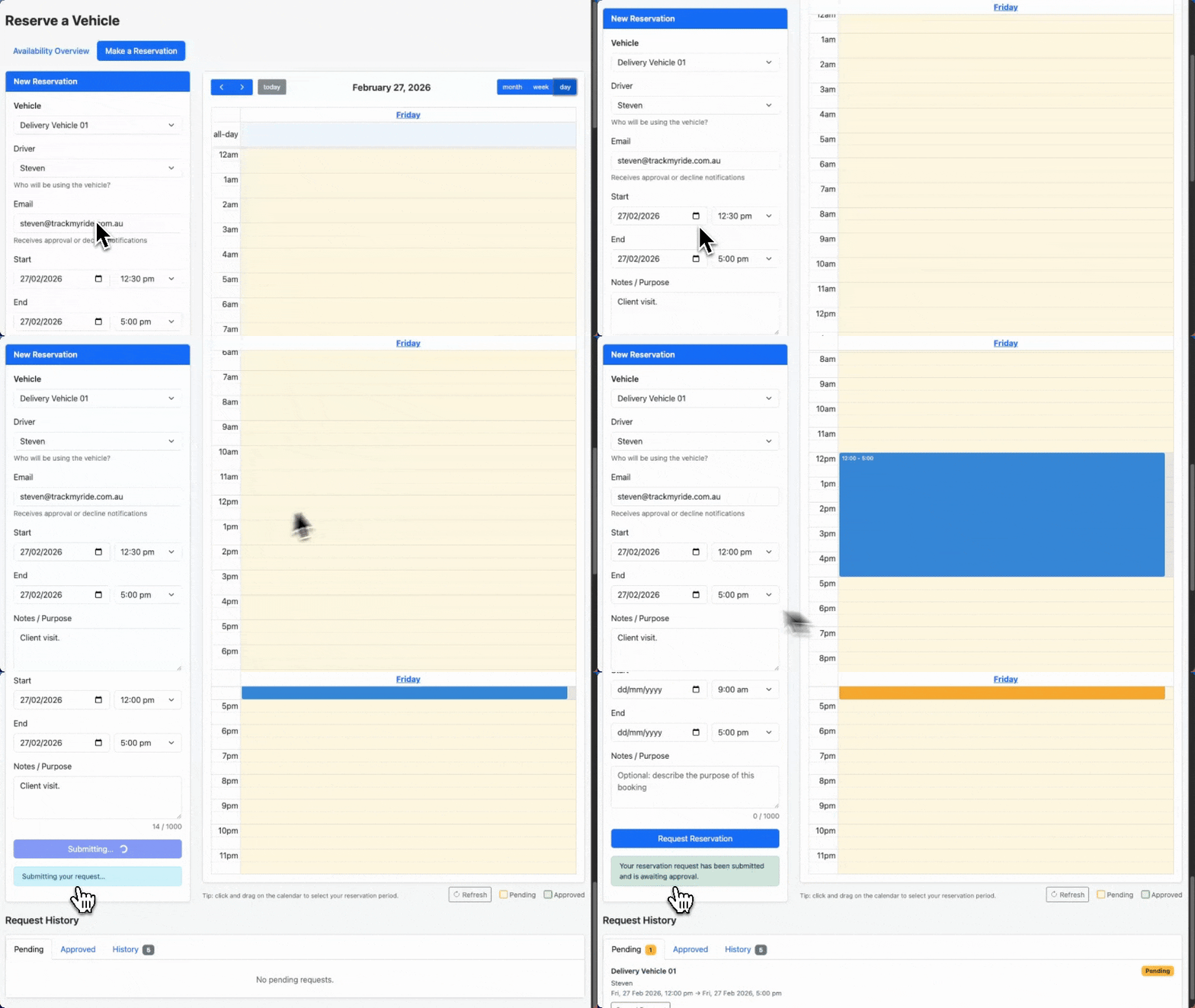
- Users visit the link, view availability, and submit reservation requests
- You review incoming requests and approve or decline them
- Users receive email notifications and can see their request status in the portal
Accessing the Portal Manager
The Portal Manager is located within the Vehicles section of the Track My Ride dashboard.
Steps to Access
- Log in to Track My Ride at
https://app.trackmyride.com.au - Click Vehicles in the left navigation menu
- Click the Reservation Portal tab
You'll see the Portal Manager interface with:
- Status indicator showing whether the portal is enabled or disabled
- Settings button (gear icon) to access configuration options
- Requests dashboard to manage incoming reservations
Note: The Reservation Portal feature is available on Fleet Metrics plans. If you don't see the Reservation Portal tab, check your subscription level or contact support.
Enabling the Portal
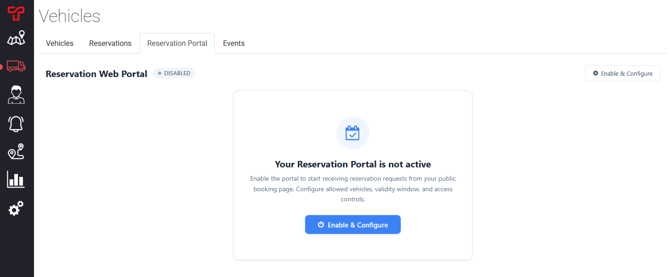
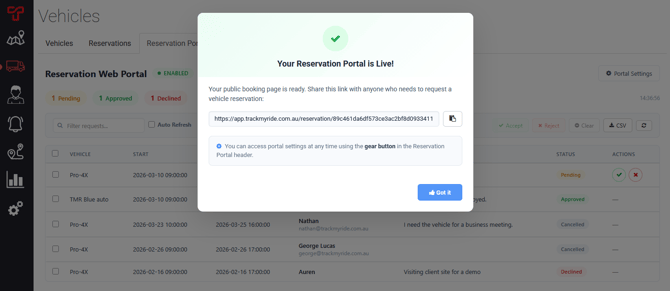
When you first access the Portal Manager, the portal is disabled. You'll see an onboarding card prompting you to enable it.
Steps to Enable
- Click Enable & Configure on the onboarding card, or click the gear icon in the header
- The configuration panel will expand
- Toggle Portal Enabled to the ON position
- Configure your settings (see Configuring Portal Settings)
- Click Save Configuration
Once saved, you'll see a "Your Reservation Portal is Live!" message with your unique portal URL.
Configuring Portal Settings
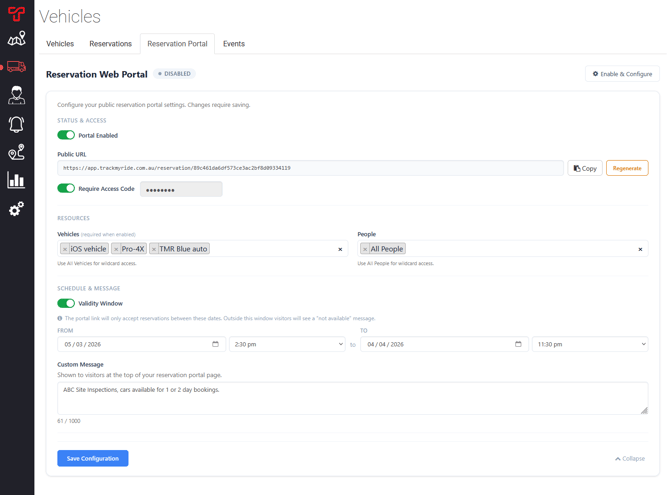
The configuration panel contains several sections for customising your portal. You can access the portal's configuration by pressing the button in the top right "Portal Settings"
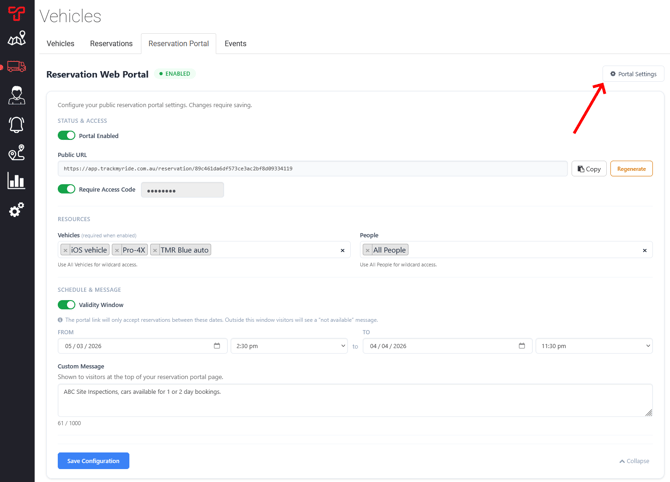
Status & Access
| Setting | Description |
|---|---|
| Portal Enabled | Master toggle to enable or disable the portal |
| Public URL | The unique link users will use to access your portal (read-only) |
| Copy | Copy the portal URL to your clipboard |
| Regenerate | Generate a new portal token (invalidates the old URL) |
| Require Access Code | Enable password protection for the portal |
| Access Code | The password users must enter (minimum 4 characters) |
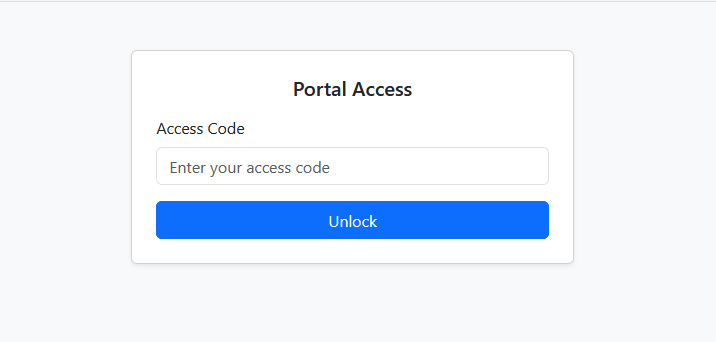
If an access code is required, it must be entered by users that visit your public reservation portal before they can access the portal.
Resources
| Setting | Description |
|---|---|
| Vehicles | Select which vehicles users can reserve. Choose "All Vehicles" for full fleet access, or select specific vehicles. |
| People | Select which drivers/workers appear in the driver dropdown. Choose "All People" for everyone, or select specific individuals. |
Tip: Use "All Vehicles" and "All People" for maximum flexibility, or restrict options to control which vehicles can be reserved.
You must deselect "All Vehicles/People" before you can select individual records. You can select multiple Vehicles or People by holding the CTRL key on your keyboard.
Schedule & Message
| Setting | Description |
|---|---|
| Validity Window | Optionally restrict when the portal accepts reservations |
| From / To | Date and time range for the validity window |
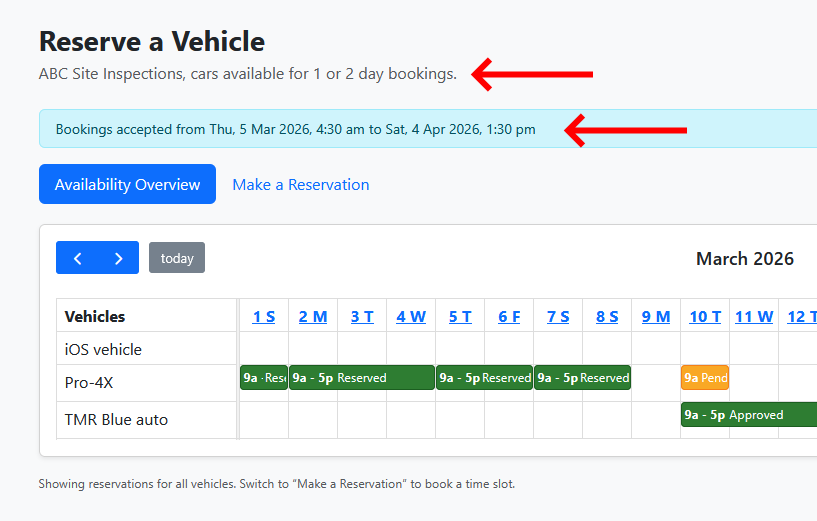
| Custom Message | Optional message displayed at the top of the public portal (up to 1,000 characters) |
Validity Window Examples
- Event booking: Set a window from March 1 to March 15 for a specific project
- Seasonal access: Open bookings only during business season
- No window: Leave disabled for indefinite access
Example configuration of a validity window and custom message
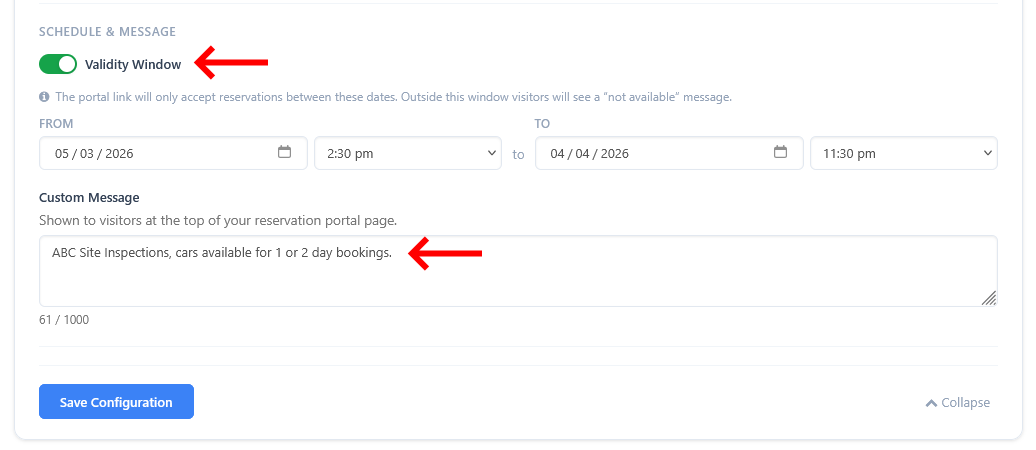
Example of the validity window and custom message in the public portal
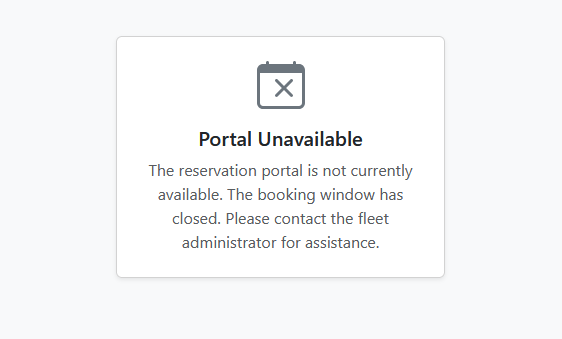
When the validity window expires, visitors see a "Portal Unavailable" message.
Sharing the Portal Link
After saving your configuration, share the portal URL with your users.
Copying the Link
- In the Portal Manager, locate the Public URL field
- Click Copy to copy the URL to your clipboard
- Share via email, messaging, or your internal communication channels
Portal URL Format
Your portal URL looks like:
https://app.trackmyride.com.au/reservation/abc123def456...The token at the end is unique to your organisation and provides secure access.
Password Protection
If you enabled an access code:
- Share the access code separately from the URL (for security)
- Users will be prompted to enter the code when they visit the portal
- After 10 incorrect attempts, users are temporarily locked out for 15 minutes
Managing Reservation Requests
When users submit reservation requests, they appear in the Requests Dashboard below the configuration panel.
Dashboard Overview
The dashboard displays:
| Element | Description |
|---|---|
| Stats Row | Count of Pending, Approved, and Declined requests |
| Filter | Search/filter requests by vehicle, date, requester, or notes |
| Auto Refresh | Toggle automatic refresh of the request list |
| Request Table | All incoming reservation requests |
| Last Refreshed | Timestamp of the most recent data refresh |
Request Details
Each request shows:
- Vehicle — The vehicle being requested
- Start / End — Requested reservation dates and times
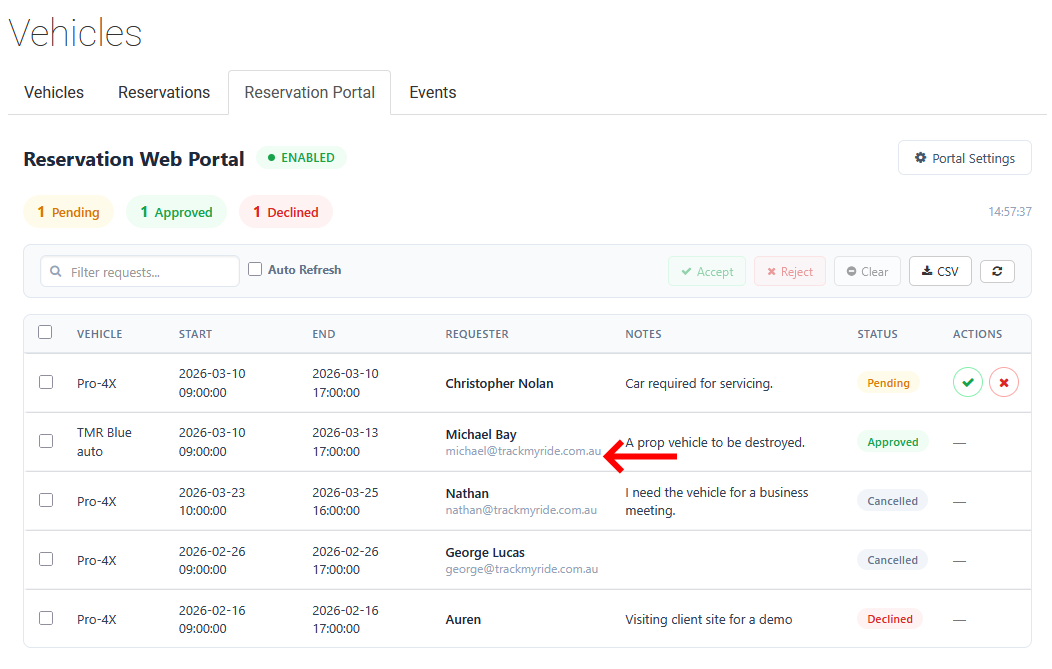
- Requester — Name and email of the person making the request
- Notes — Purpose or additional information provided
- Status — Pending, Approved, or Declined
Approving a Request
- Find the pending request in the table
- Click the green checkmark (✓) button in the Actions column
- The request is immediately approved and the calendar updated
Declining a Request
- Find the pending request in the table
- Click the red X (✕) button in the Actions column
- A modal appears asking for confirmation
- Optionally enter a reason for declining (up to 2,000 characters)
- Click Decline
Best Practice: Provide a reason when declining requests so users understand why and can resubmit with corrections if needed.
The user will be notified via email when the request is supplied if they provided their email originally. You can see if their email was provided as it will appear under their request. If no email was provided, please inform the reservation requester manually if the request is approved or declined.
Refreshing the Request List
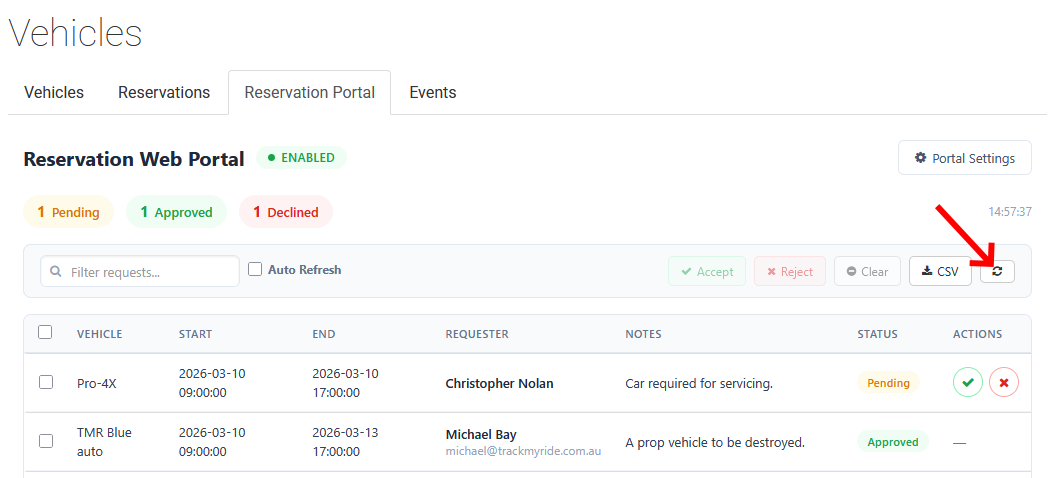
- Click the Refresh button (circular arrow icon) to manually reload requests
- Enable Auto Refresh to automatically update the list periodically
Bulk Actions
When managing many requests, use bulk actions to process them efficiently.
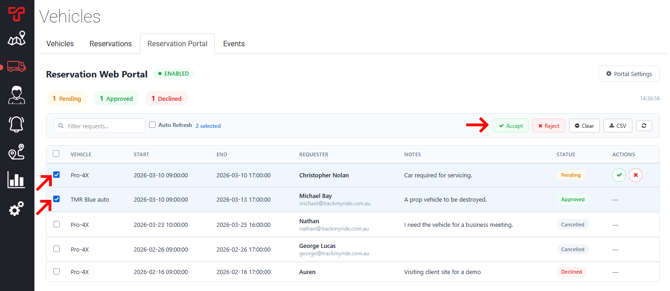
Selecting Multiple Requests
- Click the checkbox next to each request you want to select
- Or click the Select All checkbox in the header row to select all visible requests
Bulk Accept
- Select the requests to approve
- Click Accept in the toolbar
- Confirm the action in the popup
- All selected pending requests are approved
Bulk Reject
- Select the requests to decline
- Click Reject in the toolbar
- Confirm the action in the popup
- All selected pending requests are declined
Clear Selection
Click Clear to deselect all requests.
Export to CSV
Click CSV to download the visible requests as a CSV file for record-keeping or reporting.
Regenerating the Portal Link
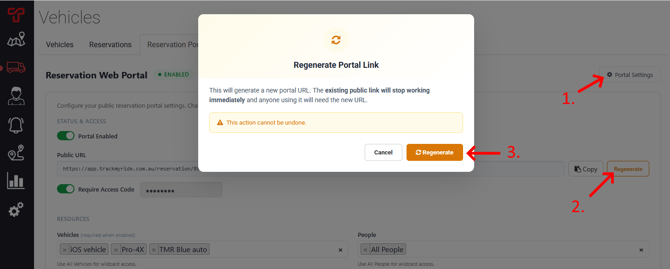
If you need to invalidate the current portal URL (for example, if it was shared with the wrong people), you can regenerate the token.
Steps to Regenerate
- Click Regenerate next to the Public URL field
- A warning modal appears explaining the consequences
- Click Regenerate to confirm
What Happens
- A new portal URL is generated immediately
- The old URL stops working instantly — anyone using it will see an error
- All existing sessions are invalidated
- You must share the new URL with authorised users
- Existing approved reservations remain unchanged
Warning: This action cannot be undone. Make sure you're ready to redistribute the new link before regenerating.
Disabling the Portal
To temporarily or permanently close the portal:
- Click the gear icon to open Portal Settings
- Toggle Portal Enabled to OFF
- Click Save Configuration
What Happens When Disabled
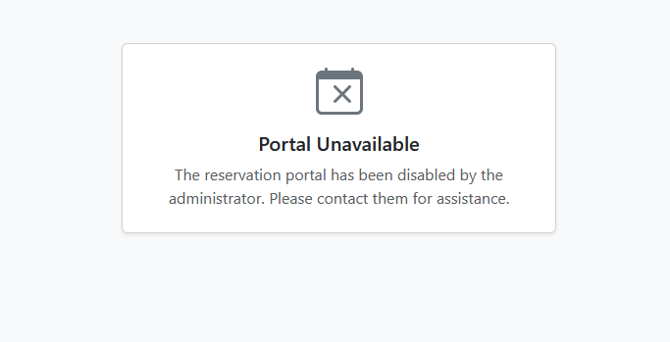
- Visitors see a "Portal Unavailable" message stating the portal has been disabled
- No new reservation requests can be submitted
- Existing approved reservations remain in the system
- You can re-enable the portal at any time without losing configuration
Best Practices
Security
- Use an access code for portals shared beyond your immediate team
- Regenerate the link if you suspect unauthorised access
- Set a validity window for temporary booking periods to automatically close the portal
Configuration
- Start with "All Vehicles" and restrict later if needed
- Add a custom message with instructions specific to your organisation
- Test the portal by visiting the link yourself before sharing widely
Request Management
- Check requests regularly — users are waiting for approval
- Enable auto-refresh when actively managing a high volume of requests
- Provide decline reasons to help users understand and resubmit correctly
- Use bulk actions during busy periods
Communication
- Share the access code separately from the portal link for better security
- Include the validity window dates when communicating the portal link
- Notify users before regenerating the link so they're not surprised by access errors
Troubleshooting
Common Issues
| Issue | Solution |
|---|---|
| Portal tab not visible | Check your subscription plan (Fleet Metrics required) or user permissions |
| Cannot save configuration | Ensure at least one vehicle is selected when portal is enabled |
| Regenerate button disabled | Save your current configuration first, then try regenerating |
| Requests not appearing | Click Refresh or enable Auto Refresh; check that portal is enabled |
| Access code not working for users | Verify the code is at least 4 characters and saved; users may be locked out after 10 failed attempts |
Error Messages
| Message | Meaning |
|---|---|
| "Fix validation errors before saving" | Check highlighted fields (vehicles, validity dates, password length) |
| "Portal is currently disabled" | Enable the portal before users can submit requests |
| "Decision failed" | Network error or request was already decided; refresh and try again |
Getting Help
If you experience issues not covered here, contact Track My Ride support by emailing support@trackmyride.com.au for assistance.
Related Documentation
- Vehicle Reservation Portal User Guide — Guide for end-users making reservations